
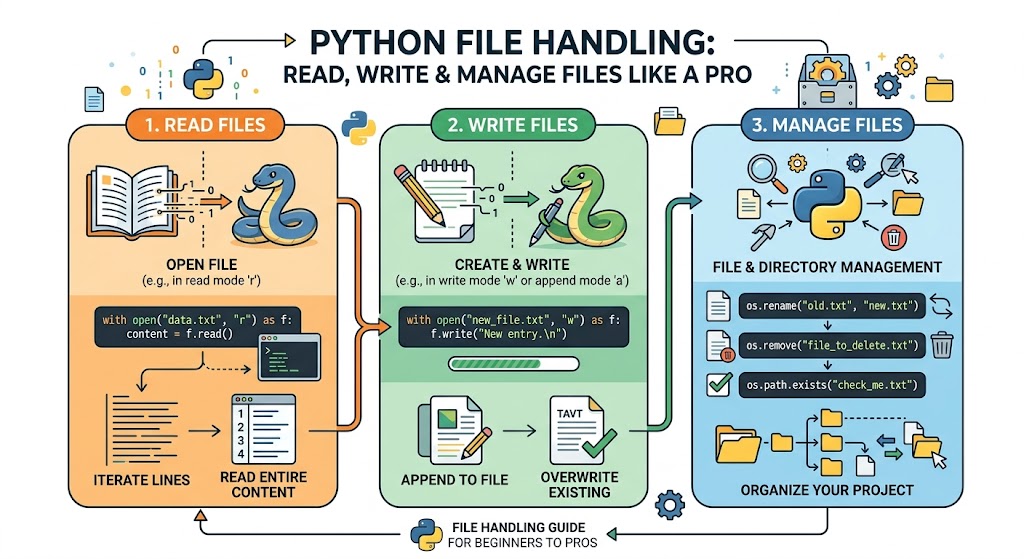
Every useful program needs to save data. Without file handling, your data disappears when the program ends. You cannot save user preferences. You cannot store results. You cannot log errors. This is where python file handling becomes essential. It gives your programs persistent storage . Data written to a file stays on your hard drive until you delete it. You can read it back days, months, or years later. This excellent guide will take you from zero to pro level python file handling . You will learn to open, read, write, append, and manage files of all types. You will master CSV for spreadsheets and JSON for web data. You will handle errors gracefully and manage directories like a professional. Let me share a fascinating fact from history of python . Guido van Rossum designed Python’s file handling to be simple yet powerful. The python open() function has remained mostly unchanged since Python’s early days in the 1990s. That stability means what you learn today will work for decades.
Why Python File Handling Matters
Computers store everything in files. Your photos are files. Your documents are files. Your music is files. Programs need python file handling to interact with this world of persistent storage. Without it, programs are like goldfish with no memory. Every run starts fresh. With python file handling , your program can remember. A to do list app saves your tasks to a file. When you reopen the app, it reads that file and shows your tasks again. A game saves your high score. A data analysis program reads millions of records from a CSV file. Web servers write logs to files. This is data persistence . The data survives beyond the program’s lifetime. Learning python file handling is a milestone for any developer. It moves you from toy programs to real applications that provide lasting value. The history of programming languages shows that file I/O (input/output) has been fundamental since the earliest days of computing.
Opening Files The Open Function
Every python file handling operation starts with the python open() function . This function creates a connection between your program and a file on disk. It returns a file object. The basic syntax is simple:
file = open("example.txt", "r")
The first argument is the file path. The second argument is the mode. The mode tells Python what you want to do with the file. Here are the most common modes:
"r" Read mode. Opens an existing file for reading. This is the default.
"w" Write mode. Creates a new file or overwrites an existing file.
"a" Append mode. Adds data to the end of an existing file.
"x" Exclusive creation mode. Fails if the file already exists.
"b" Binary mode. Used for non text files like images.
"t" Text mode. This is the default for text files.
You combine modes. "rb" means read binary. "wb" means write binary. "r+" means read and write. Here are practical examples:
read_file = open("data.txt", "r")
write_file = open("output.txt", "w")
append_file = open("log.txt", "a")
binary_file = open("image.jpg", "rb")
Understanding file paths is critical. Relative vs absolute paths confuse many beginners. A relative path is relative to your current working directory. "data.txt" looks for the file in the same folder as your Python script. An absolute path starts from the root of your filesystem. On Windows: C:\Users\Name\Documents\data.txt. On Mac/Linux: /home/name/documents/data.txt. Use raw strings or forward slashes for Windows paths to avoid escape character issues: r"C:\Users\Name\data.txt".
Reading Files Methods and Techniques
Once you open a file in read mode, you need to extract its content. Python provides several methods. The most common are read(), readline(), and readlines(). Understanding readlines vs read helps you choose the right tool.
The read() method reads the entire file as a single string:
file = open("data.txt", "r")
content = file.read()
print(content)
file.close()
For large files, reading everything at once consumes memory. The readline() method reads one line at a time:
file = open("data.txt", "r")
first_line = file.readline()
second_line = file.readline()
file.close()
The readlines() method reads all lines into a list:
file = open("data.txt", "r")
lines = file.readlines() # Returns list of strings
file.close()
for line in lines:
print(line.strip()) # strip removes newline characters
The most Pythonic way to read a file line by line is to iterate directly over the file object:
file = open("data.txt", "r")
for line in file:
process_line(line)
file.close()
This method is memory efficient because it does not load the entire file at once. For python file handling professionals, this is the preferred pattern for reading large log files or datasets.
Writing Files and Appending Data
Writing data to files is just as important as reading. The write mode "w" creates a new file or overwrites an existing one. Be careful. If the file already exists, "w" deletes all existing content. The write() method writes a string to the file:
file = open("output.txt", "w")
file.write("Hello World\n")
file.write("This is line two\n")
file.close()
The writelines() method writes a list of strings. It does not add newlines automatically. You must include them in the strings:
lines = ["First line\n", "Second line\n", "Third line\n"]
file = open("output.txt", "w")
file.writelines(lines)
file.close()
Appending to files uses "a" mode. Append mode adds data to the end of an existing file without deleting anything. If the file does not exist, append mode creates it:
file = open("log.txt", "a")
file.write("2024-01-15: User logged in\n")
file.close()
Appending is perfect for log files, audit trails, and any situation where you want to preserve existing data while adding new entries. For python file handling in real applications, append mode is used constantly for logging.
The With Statement Context Managers
Manually closing files with close() is error prone. If an exception occurs before close(), the file may stay open. This wastes system resources. The with statement (context managers) solves this problem. It automatically closes the file even if errors occur. This is the professional way to handle files:
with open("data.txt", "r") as file:
content = file.read()
print(content)
# File is automatically closed here
The with statement creates a context. The file closes when the indented block ends. You never need to call close() manually. This pattern is safer and cleaner. Here is writing with with:
with open("output.txt", "w") as file:
file.write("Automatically closed after this block")
For python file handling , always use with statements. It is a best practice that prevents resource leaks. The with statement works with any resource that needs cleanup, not just files. Database connections, network sockets, and locks all support context managers.
Error Handling in File Operations
Files can cause many errors. The file might not exist. You might not have permission to read it. The disk could be full when writing. Professional python file handling includes error handling (try-except) . Here is how to handle common file errors:
try:
with open("missing.txt", "r") as file:
content = file.read()
except FileNotFoundError:
print("The file does not exist")
except PermissionError:
print("You don't have permission to read this file")
except IOError as e:
print(f"An I/O error occurred: {e}")
except Exception as e:
print(f"Unexpected error: {e}")
You can also check if a file exists before opening it. The os.path module provides functions:
import os
if os.path.exists("data.txt"):
with open("data.txt", "r") as file:
content = file.read()
else:
print("File not found")
if os.path.isfile("data.txt"): # Checks if it is a file not a directory
print("It is a file")
For python file handling in production code, always anticipate errors. Users will give you missing filenames. Disks will fill up. Permissions will be wrong. Your code must handle these gracefully without crashing.
Working with CSV Files
Comma Separated Values (CSV) is the standard format for spreadsheets and data exchange. Python’s csv module makes writing to CSV and reading CSV files simple. Here is how to read a CSV file:
import csv
with open("data.csv", "r") as file:
reader = csv.reader(file)
for row in reader:
print(row) # Each row is a list of strings
If your CSV has a header row, you can use csv.DictReader to access columns by name:
with open("employees.csv", "r") as file:
reader = csv.DictReader(file)
for row in reader:
print(f"{row['name']} works in {row['department']}")
Writing to CSV is equally straightforward:
import csv
data = [
["Name", "Age", "City"],
["Alice", 25, "New York"],
["Bob", 30, "London"],
["Charlie", 35, "Paris"]
]
with open("output.csv", "w", newline="") as file:
writer = csv.writer(file)
writer.writerows(data)
The newline="" parameter prevents extra blank lines on Windows. For dictionaries, use csv.DictWriter:
data = [
{"name": "Alice", "age": 25, "city": "New York"},
{"name": "Bob", "age": 30, "city": "London"}
]
with open("dict_output.csv", "w", newline="") as file:
fieldnames = ["name", "age", "city"]
writer = csv.DictWriter(file, fieldnames=fieldnames)
writer.writeheader()
writer.writerows(data)
CSV handling is essential for python file handling in data science and business applications.
Working with JSON Files
JSON (JavaScript Object Notation) is the standard format for web APIs and configuration files. Python’s json module converts between JSON strings and Python dictionaries. Reading JSON:
import json
with open("config.json", "r") as file:
config = json.load(file)
print(config["database"]["host"])
Writing JSON:
data = {
"name": "Alice",
"age": 25,
"skills": ["Python", "Data Analysis"],
"active": True
}
with open("user.json", "w") as file:
json.dump(data, file, indent=4)
The indent=4 parameter makes the JSON file human readable. Without it, JSON is minified into a single line. For python file handling with modern web apps, JSON is everywhere. APIs return JSON. Configuration is stored in JSON. Data exchange happens in JSON. Mastering JSON handling is non negotiable for professional developers.
Managing Files and Directories
Python provides the os module and shutil for shutil for file management . These modules let you rename, delete, move, and copy files. They also handle directory traversal . Here are essential operations:
import os
import shutil
# Rename a file
os.rename("old_name.txt", "new_name.txt")
# Delete a file
os.remove("unwanted.txt")
# Create a directory
os.mkdir("new_folder")
# Remove an empty directory
os.rmdir("empty_folder")
# Remove a directory with contents
shutil.rmtree("non_empty_folder")
# Copy a file
shutil.copy("source.txt", "destination.txt")
# Move a file (also renames)
shutil.move("source.txt", "new_location/source.txt")
# List files in a directory
files = os.listdir("my_folder")
for file in files:
print(file)
# Get current working directory
current = os.getcwd()
# Change directory
os.chdir("/path/to/new/directory")
The os.path module provides path manipulation functions:
import os
path = "folder/subfolder/file.txt"
dirname = os.path.dirname(path) # "folder/subfolder"
basename = os.path.basename(path) # "file.txt"
exists = os.path.exists(path) # True or False
size = os.path.getsize(path) # Size in bytes
These directory traversal tools are essential for building scripts that process many files. Back up scripts, log cleaners, and data processors all need these capabilities.
Binary Files and Streams
Not all files are text. Images, videos, executables, and zip archives are binary files . Python handles them with binary modes "rb" (read binary) and "wb" (write binary). Binary mode reads and writes bytes instead of strings:
# Copy an image file
with open("photo.jpg", "rb") as source:
data = source.read() # This is bytes, not string
with open("photo_copy.jpg", "wb") as destination:
destination.write(data)
For large binary files, read in chunks to avoid memory issues:
chunk_size = 8192 # 8KB chunks
with open("large_video.mp4", "rb") as source:
with open("video_copy.mp4", "wb") as destination:
while True:
chunk = source.read(chunk_size)
if not chunk:
break
destination.write(chunk)
This chunked approach reads 8KB at a time. It can handle files larger than your RAM. The stream concept is critical for python file handling with big data. You process data as a continuous flow, not all at once.
Working with File Paths Modern Approach
The os.path module works but is clunky. Python 3.4 introduced pathlib, a modern object oriented approach to paths. For professional python file handling , pathlib is now recommended:
from pathlib import Path
# Create a Path object
path = Path("folder/subfolder/file.txt")
# Read a file
content = path.read_text()
# Write a file
path.write_text("Hello World")
# Check if file exists
if path.exists():
print("File exists")
# Get parent directory
parent = path.parent # Path("folder/subfolder")
# Get file name
name = path.name # "file.txt"
# Get stem (name without extension)
stem = path.stem # "file"
# Get extension
suffix = path.suffix # ".txt"
# List all Python files in a directory
for py_file in Path(".").glob("*.py"):
print(py_file)
# Create directories recursively
Path("new/deep/folder/structure").mkdir(parents=True, exist_ok=True)
pathlib makes python file handling more readable and less error prone. It works across Windows, Mac, and Linux without path separator headaches.
Frequently Asked Questions (FAQs)
Q1: What is the difference between readlines vs read in python file handling?read() returns the entire file as one string. readlines() returns a list of strings, one per line.
Q2: Why use the with statement (context managers) for files?
It automatically closes the file, even if errors occur. Manual close() is error prone.
Q3: How do I handle file not found errors?
Use try-except with FileNotFoundError or check os.path.exists() before opening.
Q4: What is the difference between write mode “w” and append mode “a”?
Write mode overwrites the entire file. Append mode adds data to the end.
Q5: How do I work with CSV files in Python?
Use the built in csv module with csv.reader() for reading and csv.writer() for writing.
Conclusion
You have mastered professional python file handling . You understand the python open() function and all file modes. You can read files using read(), readline(), and iteration. You can write and append data safely. You use the with statement (context managers) for automatic cleanup. You handle errors gracefully with try-except. You work with CSV using the csv module and JSON using the json module. You manage files and directories with os and shutil. You handle binary files in chunks. You use modern pathlib for path manipulation. These skills transform your Python programs. They can now save data, load configuration, process log files, and exchange data with other applications. Guido van Rossum built Python’s file handling to be simple yet powerful. Every line of code you write with files builds on decades of proven design. Go build applications that remember. Your data will persist. Your users will thank you.