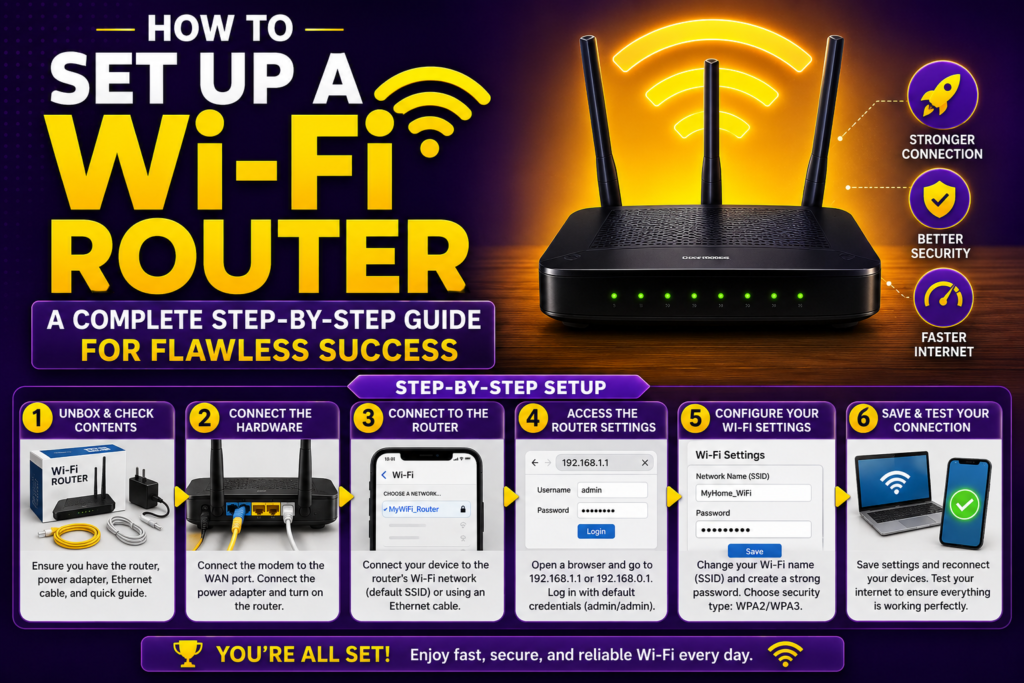
Unboxing a brand new wireless device is exciting, but configuring your home network can feel overwhelming. In our modern digital landscape, establishing a rock-solid internet connection is just as vital as turning on the electricity. Whether you are working from home, streaming high-definition entertainment, or casual browsing, learning how to set up a wi-fi router properly ensures you get the fastest speeds and the strongest security possible.
Many people assume that wireless network installation requires an expensive technical degree or a costly call to a specialist. However, the process is straightforward when broken down into manageable pieces. By managing your own router configuration guide steps, you take full control over your digital security, signal range, and network performance. This comprehensive tutorial will walk you through the entire journey from unboxing hardware to securing your administrative panel like a professional.
The Pre-Installation Phase: Gathering Your Tools
Before plugging any cables into the wall, you need to collect all necessary equipment. Having your hardware neatly laid out on a table saves time and prevents technical errors down the line.
Required Hardware and Information
- The Wireless Router: The central hub that distributes the internet signal throughout your home.
- The Broadband Modem: The device provided by your Internet Service Provider (ISP) that brings the internet signal into your house.
- Ethernet Cables: Typically, at least one or two high-quality RJ-45 cables are included in your router box.
- Power Adapters: Separate power bricks for both your modem and your new wireless device.
- Default Credentials: The factory-printed sticker on the bottom or back of your new device containing the default IP address router details, initial network name, and security key.
Step 1: Unboxing and Hardware Inspection (2020 – 2026)
The engineering of home networking hardware has evolved significantly between 2020 and 2026, transitioning to sleeker designs with internal antennas and smarter port configurations. Open your product packaging carefully and verify that you have received the device, the power supply, and a standard Ethernet cable.
Locate the product sticker on the physical casing of the device. This label contains vital information that you will need during the router admin login phase. Copy down the default gateway IP address, the temporary factory Service Set Identifier (SSID), and the unique preset password. Keep this information close by, as your browser will require these details to access the internal firmware settings later.
Step 2: Ideal Router Placement for Maximum Range
Physical placement is the single most critical factor determining your overall coverage area and signal strength. Routers emit radio waves that travel outward and downward, meaning a poor placement choice will result in dead zones throughout your home.
Placement Rules to Follow
- Centralize the Location: Place the hardware in the central room of your home so the wireless signals can reach every corner equally.
- Elevate the Device: Put the unit on a high shelf, bookcase, or desk. Avoid placing it directly on the floor because floors absorb radio frequencies.
- Avoid Physical Obstacles: Heavy concrete walls, brick structures, solid metal doors, and large mirrors degrade wireless performance significantly.
- Minimize Electronic Interference: Keep the device away from kitchen microwaves, cordless phones, baby monitors, and large television sets, as these devices operate on similar wireless frequencies.
Step 3: Connecting Modem to Router
With your device perfectly positioned, it is time to establish the physical connections. This process links your local home network to the wider global internet.
First, turn off your broadband modem completely. Unplug its power cable from the wall outlet and leave it dark for approximately two minutes. This brief pause resets the internal memory of the modem and clears out old network assignments.
[ISP Wall Jack] ---> [Modem WAN Port]
                           |
                     (Ethernet Cable)
                           |
                           v
                    [Router WAN/Internet Port]
                           |
                     (Ethernet Cable)
                           |
                           v
                    [Computer LAN Port]
Next, take a high-quality Ethernet cable. Plug one end of this cable directly into the output port on your modem. Take the opposite end of the same cable and insert it into the specific WAN port on your new router. The WAN port is frequently color-coded in yellow or blue and explicitly labeled as “Internet” or “WAN”. Do not confuse it with the standard LAN ports, which are intended for wired client computers. Once this physical bridge is secure, plug the power adapter of your modem back into the wall outlet and wait for the indicator lights to turn solid.
Step 4: Powering Up the Local Network
Now that the modem is fully operational and broadcasting an active internet feed, connect the power adapter to your wireless router and plug it into an electrical socket. Toggle the physical power button if the device has one.
Watch the front LED display panel closely. The system boot sequence normally takes between one and three minutes. Initially, the power light will flash, followed by the appearance of indicators for the system status, wireless bands, and local connectivity. Once the internet light turns a stable, solid color, your hardware is successfully talking to the modem.
Step 5: Connecting Your Computer to the Router
To configure your system settings, you must establish a data connection between a computer and the newly powered router. You can accomplish this either wirelessly or through a physical wire.
For the most stable and error-free installation process, a wired connection is highly recommended. Take a secondary Ethernet cable, plug one end into one of the available numbered LAN ports on the back of your router, and connect the other end directly to the network port of your laptop or desktop computer.
If your laptop does not feature a dedicated network port, you can connect wirelessly. Open the wireless settings on your operating system, scan for available networks, and select the default factory SSID printed on the router label. Enter the temporary security key to establish the initial connection.
Understanding how wi-fi works makes this step simple; your computer is simply sending local data packets to the router via radio signals or wires before any internet access is formally authorized.
Step 6: Accessing the Router Admin Login Page
With your computer properly linked to the local network hardware, you can now open the internal system control panel. This setup dashboard lives inside the device firmware and is accessed through a standard web browser.
Open your preferred web browser on your connected computer. Wipe the address bar clean, type in the default IP address router code, and press the Enter key. Common manufacturer gateway addresses include 192.168.0.1, 192.168.1.1, or 10.0.0.1.
+---------------------------------------------------------+
|  Chrome/Edge Browser                                _ X |
+---------------------------------------------------------+
|  Address: http://192.168.1.1                            |
+=========================================================+
|                                                         |
|   Router Admin Login Panel                              |
|                                                         |
|   Username: [ admin             ]                       |
|   Password: [ ************* ]                       |
|                                                         |
|   [ Login ]                                             |
|                                                         |
+---------------------------------------------------------+
If the address is correct, a branded login prompt will appear on your screen requesting administrative access credentials. Enter the factory username and password found on your physical product sticker. Most manufacturers use simple combinations like “admin” and “password” for initial access. Click the login button to enter the main configuration screen.
Step 7: Running the Automated Configuration Wizard
Most modern networking equipment manufactured recently features an automated setup utility designed to streamline the connection process. This wizard runs immediately upon your first successful login.
The setup utility will analyze your WAN port connection type automatically. For the vast majority of consumer residential accounts, the system will choose a dynamic IP configuration via DHCP. This means your provider will assign an internet address to your hardware automatically without any manual data entry required from you. Follow the clear on-screen prompts, clicking “Next” to allow the system to test and verify your active connection to the global web.
Step 8: Creating a Custom Wireless Network Name (SSID)
The factory SSID assigned to your hardware is generic and makes it incredibly easy for outsiders to identify the exact brand and model of your network equipment. Customizing this name makes it uniquely yours while adding a layer of privacy.
Navigate to the “Wireless Settings” or “Wireless Setup” section within your browser configuration dashboard. Locate the field labeled SSID or Network Name. Delete the factory string and type in a clean, recognizable name. Avoid putting highly personal details like your full name, apartment number, or phone number within the SSID.
Step 9: Establishing a Secure Router Setup
Leaving your home network unprotected allows anyone within physical range to steal your internet bandwidth or intercept your private personal data packets. Implementing a strict, modern security standard is mandatory for any responsible homeowner.
Locate the wireless security options within your management dashboard. You will see a dropdown list featuring various encryption algorithms. Select WPA3-Personal if your hardware supports it, or choose WPA2-AES-Personal as a highly secure, compatible secondary option. Avoid legacy options like WEP or WPA-Basic, as these older protocols are highly vulnerable to basic hacking utilities.
Code snippet
| Wireless Security Settings                            |
+-------------------------------------------------------+
| Security Type:   [ WPA3-Personal / WPA2-AES Mixed  ]  |
|                                                       |
| Encryption:      [ AES                             ]  |
|                                                       |
| Wi-Fi Password:  [ Str0ng_P@ssw0rd_2026!           ]  |
+-------------------------------------------------------+
Once the encryption protocol is selected, create a brand new, highly complex wireless password. This security key should contain a minimum of twelve characters, blending uppercase letters, lowercase letters, numbers, and unique symbols.
Step 10: Modifying the Default Administrative Password
A common mistake made during wireless network installation is keeping the factory-installed login credentials for the administrative management panel. If you leave the admin password as “admin”, any guest or neighbor who connects to your network can log into your core settings and take full control of your hardware.
Locate the “System Tools”, “Administration”, or “Account Management” submenu within your firmware portal. Look for the explicit option to change Wi-Fi password strings or administrative access keys. Type in the old factory password once, then enter a completely fresh, unique master administrative password. Store this specific master passphrase securely in a physical notebook or a digital password manager, as you will need it whenever you want to update settings in the future.
Step 11: Configuring Network Frequency Bands
Modern networking hardware utilizes multi-band technology to distribute internet traffic efficiently. Managing these frequencies helps prevent congestion and maximizes your internal transmission speeds.
Understanding Your Frequency Options
- The 2.4 GHz Band: This frequency provides an incredibly wide coverage area and easily penetrates solid walls, but it offers slower data speeds and is highly prone to interference from local household appliances.
- The 5 GHz Band: This band delivers blazing-fast data transfer speeds and suffers very little interference, but it has a much shorter range and struggles to pass through thick walls.
- Smart Connect Features: Many modern devices offer a combined single SSID feature. When enabled, the device uses intelligent internal logic to shift your smartphones and computers to the optimal frequency band automatically based on how close they are to the transmitter.
Step 12: Updating Firmware for Long-Term Stability
The software operating inside your network hardware is called firmware. Manufacturers publish regular firmware updates to patch critical security exploits, fix software bugs, and improve overall hardware compatibility.
Navigate to the system management menu and look for the “Firmware Update” or “Router Upgrade” tool. Many modern devices have an automated button that checks the internet for updates, downloads the latest binary file, and installs it automatically. If your model requires a manual update, visit the official support page of the manufacturer, download the specific update file matching your exact model number, and upload it into your local browser setup dashboard. Do not interrupt the power supply while this update is processing.
Step 13: Connecting Client Devices to Your New Network
With your hardware fully updated and locked down, you can safely connect all your personal client hardware. Turn on the wireless radios on your smartphones, smart televisions, tablets, and gaming consoles.
Scan for available networks, select your newly customized SSID name, and type in your strong security passphrase. Once connected, open a standard webpage on each device to ensure data flows quickly and smoothly. If you have older smart-home appliances that refuse to connect, double-check that your 2.4 GHz frequency band is enabled, as many simple smart bulbs require this specific legacy frequency.
Troubleshooting Common Setup Issues
Even with an excellent guide, you may encounter minor setup hurdles during your first home deployment. Most network bugs are easy to resolve with a few basic diagnostic adjustments.
If your devices show a successful connection to your SSID but have no internet access, the issue usually lies in the handshake between the modem and your new hardware. Power down both units completely, wait two minutes, turn the modem on first, and wait for its lights to settle before turning your new router back on.
If you cannot open the configuration page in your browser, check your physical wiring. Ensure you are plugged into a local LAN port rather than the WAN port, or verify that your computer has successfully received a valid local IP address via DHCP from the router.
Frequently Asked Questions (FAQs)
How often should I reboot my home networking router?
While modern networking equipment is built to run continuously, rebooting your device once every month is an excellent practice. A quick power cycle clears out accumulated system cache, resets stalled data streams, and forces the system to re-optimize its channel selections.
Should I disable the remote management feature on my hardware?
Yes, you should absolutely disable remote management within your administration settings. Leaving this feature enabled allows individuals outside your home to access your login page over the open internet. Keeping it disabled ensures that only computers physically connected inside your house can alter your core settings.
What is the difference between an admin password and a Wi-Fi password?
The Wi-Fi password is the security key that your everyday devices use to connect to your wireless signal for internet access. The admin password is the master access key used exclusively to log into the internal settings dashboard via a web browser to modify network parameters.
Conclusion: Enjoying Your Secure Home Network
Learning how to set up a wi-fi router is an empowering technical skill that ensures your home network operates at peak performance while protecting your sensitive personal data from unwanted exposure. By systematically placing your device, linking your hardware correctly, modifying factory login details, and selecting robust encryption protocols, you have created a dependable digital foundation for your home. Keep your system firmware updated regularly, review your network performance periodically, and enjoy a fast, safe connection across all your favorite devices.