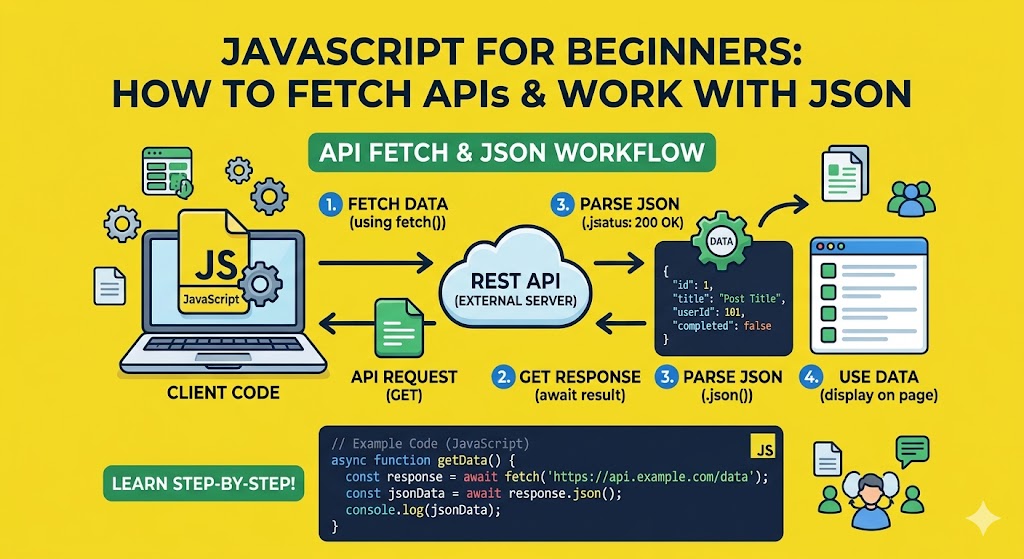
Imagine building a weather app that shows live conditions. Or a news dashboard with the latest headlines. Or a shopping site with product prices from around the web. All these apps need data from somewhere. That somewhere is an API. An API is an external data sources provider. Your JavaScript code asks for data. The API responds. This is how modern web applications work. This powerful javascript fetch API tutorial will teach you everything. You will learn how to make HTTP requests to RESTful APIs . You will handle JSON responses . You will send data with POST requests. You will handle errors gracefully. By the end, you will connect your web pages to live data from anywhere. The history of javascript started in 1995 when Brendan Eich created the language. Early JavaScript could not fetch data easily. You had to use XMLHttpRequest, which was clunky. The javascript fetch API arrived with javascript ES6 features in 2015. It made client-server communication simple and elegant. Let me start with the most important concept.
What is an API and Why Do You Need It
API stands for Application Programming Interface. In web development, an API is a set of web services that let your code talk to a server. Think of an API like a restaurant menu. You look at the menu (API documentation). You order a specific item (send a request). The kitchen prepares your food (server processes). The waiter brings your food (API returns data). You do not need to know how the kitchen works. You just need the menu. APIs work the same way. You send a request to a specific URL called an endpoint . The server responds with structured data . That data is usually JSON format. Real world APIs include weather data, stock prices, sports scores, movie information, social media posts, and payment processing. Any data you can imagine probably has an API. For javascript beginner guide readers, learning to fetch APIs opens unlimited possibilities.
What is JSON and Why APIs Use It
JSON stands for JavaScript Object Notation. It is a lightweight data exchange format. JSON looks exactly like JavaScript objects and arrays. That is why JavaScript loves it. Here is what JSON looks like:
{
"name": "Alice",
"age": 25,
"city": "New York",
"hobbies": ["reading", "coding", "hiking"],
"isStudent": false
}
JSON uses double quotes for keys and strings. No trailing commas. Otherwise, it is identical to JavaScript. APIs use JSON because it is text based (easy to send) and structured (easy to parse). Almost every programming language can read and write JSON. This data serialization format is the universal language of web APIs. When you fetch data from an API, you usually get JSON. You need to convert that JSON into a usable JavaScript object. That process is called parsing.
The Fetch API Your Gateway to Data
The javascript fetch API is built into every modern browser. You do not need to install anything. The fetch() function makes HTTP requests. It returns a Promise object . That means you use asynchronous javascript explained patterns like .then() and async/await. Here is the simplest fetch example:
fetch("https://api.example.com/data")
.then(response => response.json())
.then(data => console.log(data))
.catch(error => console.error("Error:", error));
Let me break down each line. fetch(url) sends a request to the URL. It returns a promise that resolves to a Response object. The response.json() method reads the response body and parses JSON. It returns another promise. The second .then() receives the parsed data. The .catch() handles any errors like network failures. This is the AJAX with fetch pattern. AJAX stands for Asynchronous JavaScript and XML. Modern AJAX uses JSON, not XML.
Making Your First API Request (GET)
Let me walk you through a real example. We will use the JSONPlaceholder API. It is a fake API for testing. Perfect for this javascript fetch API tutorial . Create an HTML file:
<!DOCTYPE html>
<html>
<body>
<h1>Posts from API</h1>
<button id="fetchBtn">Load Posts</button>
<div id="posts"></div>
<script>
async function fetchPosts() {
const postsDiv = document.getElementById("posts");
postsDiv.innerHTML = "Loading...";
try {
const response = await fetch("https://jsonplaceholder.typicode.com/posts");
if (!response.ok) {
throw new Error(HTTP error! status: ${response.status});
}
const posts = await response.json();
postsDiv.innerHTML = "";
posts.forEach(post => {
const postElement = document.createElement("div");
postElement.innerHTML =<strong>post.title</strong><p>{post.body}</p><hr>;
postsDiv.appendChild(postElement);
});
} catch (error) {
postsDiv.innerHTML =Failed to load posts: ${error.message};
}
}
document.getElementById("fetchBtn").addEventListener("click", fetchPosts);
</script>
</body>
</html>
This example uses async/await because it is cleaner than .then() chains. The response status is checked with response.ok. HTTP status codes like 200 mean success. 404 means not found. 500 means server error. Always check response.ok. The response.json() method parses the JSON responses . Then we loop through the posts array and display each one.
Parsing JSON Stringify and Parse
Sometimes you need to convert JavaScript objects to JSON strings. You send JSON to an API when creating or updating data. Other times you receive JSON strings that need conversion. JSON.parse() and JSON.stringify() handle both. JSON.stringify() converts a JavaScript object to a JSON string.
const user = { name: "Alice", age: 25 };
const jsonString = JSON.stringify(user);
console.log(jsonString); // '{"name":"Alice","age":25}'
JSON.parse() converts a JSON string back to a JavaScript object.
const jsonString = '{"name":"Bob","age":30}';
const user = JSON.parse(jsonString);
console.log(user.name); // "Bob"
When you call response.json(), it does JSON.parse() automatically. When you send data to an API, you usually use JSON.stringify() on the request body. The JSON.parse() and JSON.stringify() methods are essential for data serialization .
Sending Data with POST Requests
APIs are not only for reading data. You can also create, update, and delete data. POST requests send new data to the server. Here is how to send a POST request with GET and POST requests handling:
async function createPost() {
const newPost = {
title: "My New Post",
body: "This is the content of my new post.",
userId: 1
};
try {
const response = await fetch("https://jsonplaceholder.typicode.com/posts", {
method: "POST",
headers: {
"Content-Type": "application/json"
},
body: JSON.stringify(newPost)
});
if (!response.ok) {
throw new Error(HTTP error! status: ${response.status});
}
const data = await response.json();
console.log("Created:", data);
} catch (error) {
console.error("Error creating post:", error);
}
}
The fetch function takes a second options object. The method property specifies POST. The headers property tells the server we are sending JSON. The body property contains the JSON string. The server responds with the created object, usually including a new ID. The request headers are important. Many APIs require authentication headers. You might need an API keys header:
headers: {
"Authorization": "Bearer YOUR_API_KEY",
"Content-Type": "application/json"
}
Never hardcode API keys in client side JavaScript. Anyone can see them. Use environment variables on a server or backend proxy.
Handling Different HTTP Status Codes
response status codes tell you what happened. Here are the most common ones. 200 OK means success. 201 Created means POST created a new resource. 400 Bad Request means your request was malformed. 401 Unauthorized means you need authentication. 403 Forbidden means you are authenticated but not allowed. 404 Not Found means the endpoint does not exist. 500 Internal Server Error means the server failed. Always check response.ok (status 200-299). For more detailed handling, check response.status directly:
if (response.status === 404) {
console.log("Resource not found");
} else if (response.status === 401) {
console.log("Please log in");
} else if (!response.ok) {
console.log(HTTP error: ${response.status});
}
Proper error handling makes your app robust. Users see helpful messages. Developers debug faster.
Working with API Data in Real Projects
Let me build a complete example. A weather app using a real API. First, sign up for a free API key at OpenWeatherMap. Then build this:
<!DOCTYPE html>
<html>
<body>
<h1>Weather App</h1>
<input type="text" id="cityInput" placeholder="Enter city name">
<button id="getWeatherBtn">Get Weather</button>
<div id="weatherResult"></div>
<script>
const API_KEY = "YOUR_API_KEY_HERE";
async function getWeather() {
const city = document.getElementById("cityInput").value.trim();
if (!city) {
alert("Please enter a city name");
return;
}
const weatherDiv = document.getElementById("weatherResult");
weatherDiv.innerHTML = "Loading weather data...";
try {
const response = await fetch(url);
if (!response.ok) {
if (response.status === 404) {
throw new Error("City not found");
}
throw new Error(HTTP error! status: ${response.status});
}
const data = await response.json();
`weatherDiv.innerHTML = “
<h2>${data.name}, ${data.sys.country}</h2>
<p>Temperature: ${data.main.temp}°C</p>
<p>Feels like: ${data.main.feels_like}°C</p>
<p>Weather: ${data.weather[0].description}</p>
<p>Humidity: ${data.main.humidity}%</p>
<p>Wind speed: ${data.wind.speed} m/s</p>
;
} catch (error) {
weatherDiv.innerHTML =Error: ${error.message};
}
}
document.getElementById("getWeatherBtn").addEventListener("click", getWeather);
document.getElementById("cityInput").addEventListener("keypress", (e) => {
if (e.key === "Enter") getWeather();
});
</script>
</body>
</html>
This weather app demonstrates fetch data from URL with user input. The encodeURIComponent() function safely encodes the city name for URLs.
Error Handling and Loading States
Professional applications always handle errors and show loading states. Users hate unresponsive interfaces. Always show something while fetching. The parsing data step can also fail if the API returns invalid JSON. Wrap parsing in try/catch:
try {
const data = await response.json();
// Use data
} catch (parseError) {
console.error("Failed to parse JSON:", parseError);
// Show user friendly message
}
Network errors happen. The user might lose internet connection. The API might be down. Always have a fallback message. For web integration , consider adding a retry button. The user can try again without refreshing the page.
Using Async/Await with Fetch
Throughout this javascript fetch API tutorial , I used async/await. It is the cleanest way to write asynchronous code. But you can also use .then() chains. Here is the same code both ways. Async/await:
async function getData() {
try {
const response = await fetch(url);
const data = await response.json();
console.log(data);
} catch (error) {
console.error(error);
}
}
Promise chain:
function getData() {
fetch(url)
.then(response => response.json())
.then(data => console.log(data))
.catch(error => console.error(error));
}
Both work. The javascript fetch API tutorial recommends async/await for readability. Error handling with try/catch is more intuitive. For simple cases, .then() is fine. For complex sequences, async/await is better.
Frequently Asked Questions (FAQs)
Q: What is the javascript fetch API tutorial and how do I use it?
The fetch API is a built in JavaScript function for making HTTP requests. Use fetch(url) and await response.json() to get data.
Q: What is the difference between GET and POST requests?
GET requests retrieve data. POST requests send new data to create resources. GET parameters go in the URL. POST data goes in the request body.
Q: How do I handle JSON responses from an API?
Use response.json() which parses the JSON body and returns a JavaScript object. Always await it or use .then().
Q: What is the difference between JSON.parse() and JSON.stringify()?
JSON.parse() converts a JSON string to a JavaScript object. JSON.stringify() converts a JavaScript object to a JSON string.
Q: How do I handle errors when fetching data from an API?
Use try/catch with async/await. Check response.ok for HTTP errors. Always show user friendly messages and loading states.
Conclusion
You have mastered this javascript fetch API tutorial from start to finish. You understand what APIs are and why they matter. You can read and write JSON with JSON.parse() and JSON.stringify() . You make HTTP requests using GET and POST. You handle GET and POST requests with proper headers and bodies. You parse JSON responses . You handle errors gracefully. You show loading states. You check response status codes. You use async/await for clean asynchronous code. The history of javascript shows how far we have come. Brendan Eich gave us the language. The fetch API and javascript ES6 features gave us modern tools. asynchronous javascript explained earlier. Now you apply it to real data. The future of software engineering depends on connecting applications through APIs. You now have that power. Go build something that pulls live data from the world. Your interactive, data driven web applications are waiting to be built.