The modern household depends entirely on invisible wireless connections to power daily activities, making a definitive guide on how to boost wi-fi signal paths an absolute necessity for smooth digital living. Whether you are trying to handle a critical video presentation for work, streaming ultra-high-definition movie files, or setting up smart smart home gadgets, weak connectivity destroys your productivity. Dealing with dropping data streams and frustrating video buffers is not just an annoying inconvenience; it actively reduces your efficiency, limits device performance, and compromises your home entertainment setup.
Many property owners assume that the only cure for a weak network is upgrading to an incredibly expensive broadband subscription plan. However, a slow web connection is frequently caused by poor local hardware deployment rather than limitations on your main provider line. Learning how to boost wi-fi signal zones requires a solid look at how electromagnetic waves travel around household physical blockades and how other electrical signals cause interference. By applying strategic network modifications, you can clear wireless dead zones, banish buffering rings, and experience blazing-fast speeds in every corner of your home.
The Core Science of Airwave Propagation
To execute a successful home optimization plan, we must first look at the underlying mechanics of how radio frequencies carry data files through your living space. Wireless network routers operate as two-way radio hubs, converting digital network files into physical electromagnetic frequencies that continuously spread outward into your rooms.
The actual volume of this signal drops naturally as the physical distance from your transmitter grows larger. To understand this energy loss, learning how wi-fi works at a basic physics level reveals how open-air signals are prone to absorption and scattering the moment they leave your router antenna array. If your receiving hardware possesses low sensitivity, it will struggle to process fading data packets, leading directly to dropped connections and sluggish responses.
The Historical Baseline of Wireless Coverage (1997 – 2009)
Looking back at the early baseline of wireless range between 1997 and 2009 illustrates how engineering teams have continuously fought to improve home coverage limits.
During the late nineties and early thousands, home routers operated on basic legacy standards that provided incredibly small coverage areas. A user sitting just two rooms away from the main access point would experience severe signal drops and massive data packet loss. Over this period, standard hardware struggled to penetrate simple interior walls, forcing consumers to stay close to their networking equipment. This early era proved that relying purely on factory broadcasting power was not enough, establishing the clear need for advanced home optimization techniques and specialized extension hardware to achieve widespread household coverage.
Strategic Hardware Placement Architecture
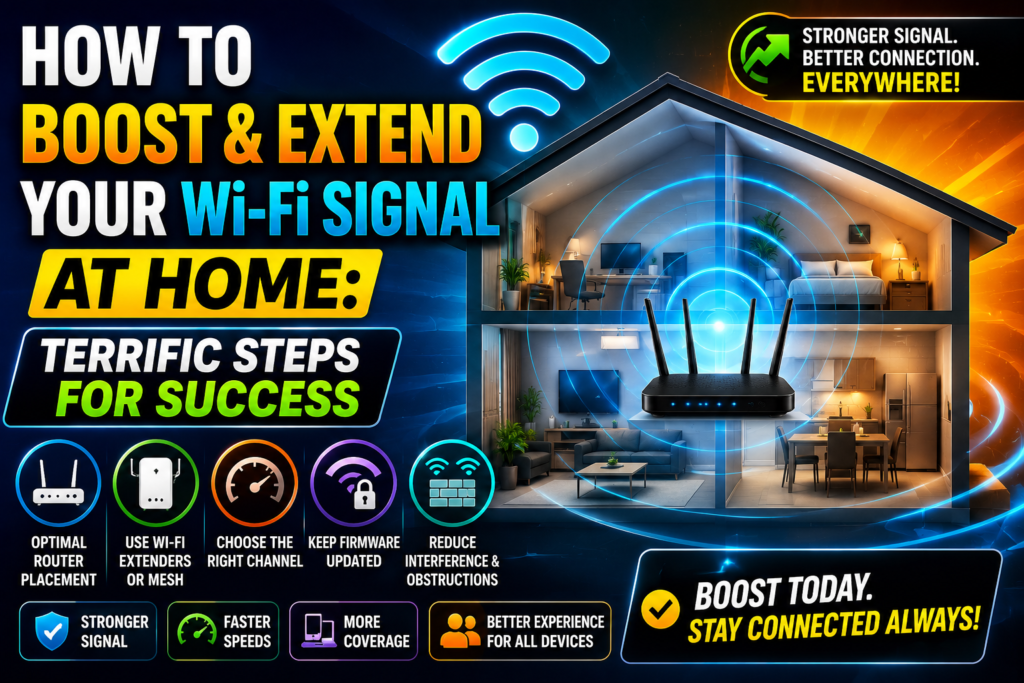
The single most cost-effective method to improve your network footprint is modifying where your physical transmitter sits inside your home. Home layouts dictate signal health, meaning an archive of best router placement ideas can completely transform your data speeds without costing a single dollar.
[Bad Placement: Corner of House]
+-----------------------------------+
| [Router] Signal Bleeds Outside    |
|   |                               |
|   v                               |
| (Fading Signal to Bedrooms)       |
+-----------------------------------+

[Ideal Placement: Centralized & Elevated]
+-----------------------------------+
|         (Equal Coverage)          |
|                ^                  |
|                |                  |
|       [Elevated Router]           |
|                |                  |
|                v                  |
|         (Equal Coverage)          |
+-----------------------------------+
Many consumers hide their networking units inside low wooden television cabinets, behind dense metallic appliances, or down on the floor in a far corner of the building. This forces your radio signals to travel through heavy physical obstructions right at the start of their journey, causing immediate signal reflection and dramatic power loss. To capture maximum coverage, elevate your router on a high shelf or central table, and place it in the geographic center of your house. This central placement ensures that the omnidirectional waves spread out equally into your living spaces rather than bleeding uselessly into your outside walls.
Tackling Structural Obstacles and Interference Sources
Wireless signals face a continuous gauntlet of physical material blockades that absorb or bounce radio frequencies, creating immediate dead spots throughout your home.
Different materials cause completely different levels of signal loss. Standard interior drywall and wooden doors drop very little energy, allowing waves to pass through easily. However, brickwork, heavy stone fireplaces, and concrete walls sap up to ninety percent of your broadcasting power instantly. Furthermore, large glass mirrors, metallic bathroom plumbing arrays, and kitchen refrigerators reflect signals backward, creating chaotic data collisions. Identifying what blocks Wi-Fi signals in your specific layout allows you to move your hardware away from these major obstacles, helping you fix slow Wi-Fi in bedroom areas where connection drops are most common.
Deep Dive into Frequency Channel Optimization
Modern home routers broadcast information across two distinct frequency zones: the 2.4 GHz band and the 5 GHz band. Managing how these bands operate inside your firmware dashboard is a key step when learning how to boost wi-fi signal performance.
The 2.4 GHz spectrum is highly valuable for covering large physical distances because its long radio waves pass through walls with relative ease. However, this band is incredibly crowded because it must share space with kitchen microwave ovens, Bluetooth accessories, and neighboring networks. If you find your connection lagging, studying a guide on how to fix wi-fi problems can show you how to manually shift your router away from crowded automatic channels over to clean, non-overlapping channels like 1, 6, or 11.
Conversely, the 5 GHz band offers incredible multi-gigabit speeds but features a much smaller coverage footprint. If you need a refresher on how these frequencies handle coverage, looking at wi-fi range explained highlights why the shorter waves of the 5 GHz band require a clearer line of sight to stay stable.
Firmware Optimization and Driver Software Checks
Sometimes the bottleneck limiting your network reach is entirely software-based, hidden deep within your internal device configuration code profiles.
Python
def check_network_efficiency(firmware_age_months, current_channel_overlap):
    # Diagnostic checking utility for home router efficiency metrics
    efficiency_score = 100

    if firmware_age_months > 12:
        efficiency_score -= 25  # Outdated firmware drops performance
    if current_channel_overlap == True:
        efficiency_score -= 30  # Heavy neighbor interference drops speed

    return f"Estimated Local Network Performance Level: {efficiency_score}%"

# Simulating a local area network diagnostic audit
print(check_network_efficiency(firmware_age_months=18, current_channel_overlap=True))
To prevent software performance drops, log into your administration portal using a local web browser and check for any available firmware upgrades. Manufacturers release regular software patches that optimize internal algorithms, fix transmission bugs, and sometimes increase local broadcasting power. If you are unfamiliar with accessing this backend portal, a review on how to set up a wi-fi router will guide you through entering your default gateway IP address and admin passwords safely.
Upgrading Physical Router Antennas
If your router features external removable antennas, you can implement an excellent DIY Wi-Fi signal booster option by replacing the standard factory sticks with high-gain directional equivalents.
Standard factory routers generally ship with small omnidirectional antennas that scatter radio waves uniformly in a massive circle. High-gain directional antennas allow you to concentrate that exact same broadcasting energy into a tight, powerful beam aimed directly toward the rooms where you need internet access most. This targeted upgrade boosts your localized coverage and dramatically improves receiver sensitivity, allowing your router to pick up faint return signals from distant devices.
Deploying a Powerline Wi-Fi Extender Solution
When your home features incredibly thick concrete walls that completely swallow radio waves, running a wireless repeater is highly ineffective because the repeater itself will struggle to capture a clean signal.
A powerline Wi-Fi extender uses your home’s existing copper electrical wiring to send data packets between distant rooms. You plug a main adapter into an electrical socket near your router and link them with a short network cable. Then, you place a secondary receiver node into any outlet near your weak zone. This layout provides a highly stable wired bridge right through your walls, bypassing physical obstacles to deliver a fresh, clean wireless signal exactly where you need it.
Evaluating Mesh Wi-Fi System vs Extender (2020 – 2026)
The engineering solutions used to resolve large home dead zones changed completely between 2020 and 2026, transitioning away from traditional network repeater guide setups toward smart multi-node configurations.
Traditional Extender Setup (Creates separate, slower networks):
[Main Router] ------( Weakened Signal )------> [Range Extender] ---> [Device connects to Extender_EXT]

Modern Mesh Setup (Single seamless network across all nodes):
[Mesh Router] <====( Dedicated Backhaul )====> [Mesh Node] ========> [Device connects seamlessly]
Traditional range extenders function by grabbing a fading wireless signal from your airwaves and rebroadcasting it out to your devices under a secondary network name. This process often cuts your available speed in half because the single radio chip must talk to your router and your smartphone at the same time.
A modern mesh Wi-Fi system eliminates this speed drop by utilizing multiple smart nodes placed across your property to create a single, unified network. These systems use a dedicated wireless or wired backhaul lane to send data between nodes, allowing you to experience seamless roaming. As you walk from your living room to your backyard, your smartphone shifts to the closest node instantly without experiencing a single drop in speed or connection quality.
Advanced Management: Quality of Service (QoS) Configuration
If your coverage feels slow even when your signal bars look completely full, your network might be suffering from local device congestion rather than an actual range problem.
Log into your router firmware dashboard and locate the Quality of Service (QoS) management tab. This feature allows you to set clear traffic priorities for your home network. You can configure the system to give maximum priority to critical, latency-sensitive tasks like work video calls or online learning portals, while forcing heavy background file downloads or console game updates to wait for unused bandwidth. This smart sorting completely prevents a single device from causing a bottleneck, keeping your network fast and responsive across your entire coverage area.
Frequently Asked Questions (FAQs)
Does a DIY Wi-Fi signal booster actually work?
Simple adjustments like putting a curved piece of aluminum foil behind your router antennas can help reflect radio waves in a specific direction, but they provide a very minor boost. For real, noticeable improvements across a large home, upgrading to high-gain antennas or a mesh system is vastly more effective.
Will an advanced mesh network completely replace my current router?
Yes, in most home installations, the primary mesh node plugs directly into your broadband modem and takes over all routing duties. You can then turn off the old wireless radio on your original provider box to prevent local channel interference.
Why does my connection drop whenever I use the kitchen microwave?
Many older household appliances browse the exact same 2.4 GHz frequency spectrum used by wireless routers. When a microwave runs, it can leak minor radiation that creates immediate open-air noise, dropping local data packets. Shifting your critical devices over to the 5 GHz band completely avoids this kitchen appliance interference.
Conclusion: Mastering Your Home Connection Footprint
Taking the time to learn how to boost wi-fi signal zones gives you the practical skills needed to build a fast, dependable home network environment without paying for expensive technical support. By combining smart central placement, managing your internal frequency channels, updating your firmware, and picking the right extension hardware like powerline kits or mesh nodes, you can easily clear out every dead spot on your property. Keep your equipment clear of heavy electronic noise sources, monitor your local channel traffic regularly, and enjoy a stable, lightning-fast connection across all your favorite devices. To get a better look at how these household wireless setups compare against traditional physical options, checking out our breakdown on wi-fi vs ethernet compared shows you exactly how to pick the right connection style for every room in your house.