
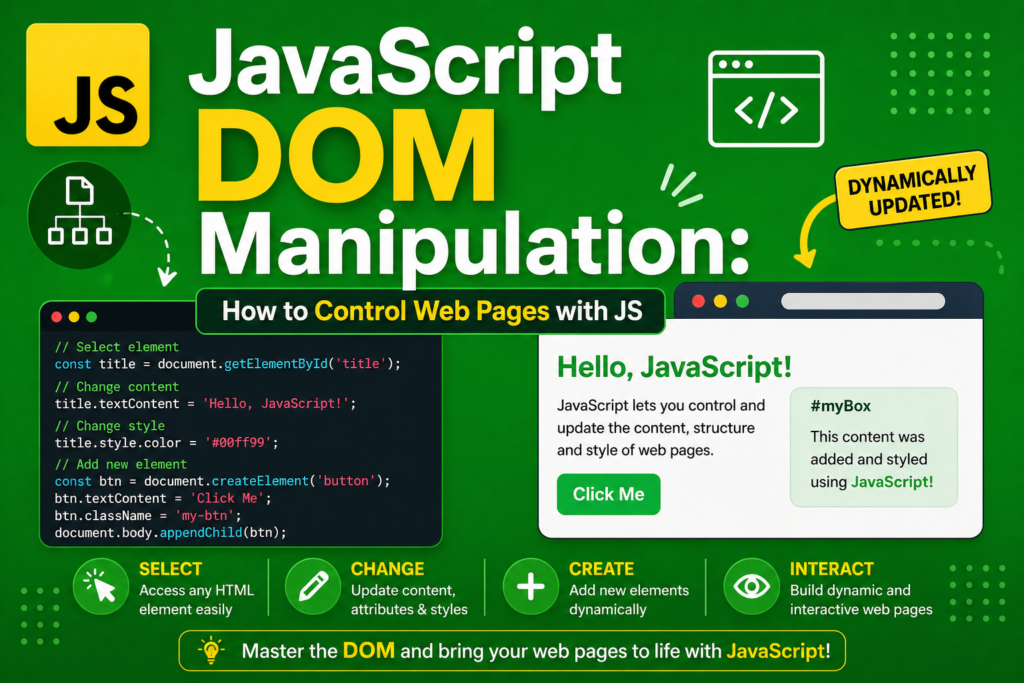
Imagine a web page that never changes. You click a button. Nothing happens. You submit a form. The whole page reloads. That was the web in 1995. Then Brendan Eich created JavaScript. And everything changed. JavaScript could talk to the web page. It could read elements. It could modify content. It could respond to clicks. This communication bridge is called the DOM. The Document Object Model is a tree like representation of your HTML page. Every element, every attribute, every piece of text is a node in this tree. JavaScript can traverse this tree, read nodes, modify nodes, create new nodes, and delete old nodes. This javascript DOM manipulation guide will teach you everything. You will learn to select elements, change content, modify styles, create new elements, handle events, and build dynamic user interfaces. The history of javascript shows that DOM manipulation turned static pages into interactive applications. Let me start with the most important concept. When a browser loads a page, it creates the DOM. JavaScript can then manipulate that DOM.
What Is the DOM and Why It Matters
The Document Object Model is an API for HTML and XML documents. It represents the page as a tree of objects. Each HTML element becomes an object with properties and methods. The document tree starts at the root. The document object represents the entire page. Below it are <html>, then <head> and <body>, then all your content. This document structure allows JavaScript to access any element. Before DOM manipulation, web pages were static. After DOM manipulation, pages became dynamic. You can update content without reloading. You can respond to user actions instantly. You can create animations, validate forms, build games, and create full applications. The script-to-HTML bridge made the modern web possible. For javascript beginner guide readers, understanding the DOM is the gateway to building real websites. Without DOM manipulation, JavaScript cannot interact with the user. With it, you control everything the user sees and does.
Selecting Elements from the DOM
Before you can manipulate an element, you need to find it. Element selection is the first step in any javascript DOM manipulation guide . JavaScript provides several methods to select elements. Some are older but still work. Some are modern and flexible. The oldest method is getElementById. It selects a single element by its ID attribute.
// HTML: <h1 id="title">Hello World</h1>
const title = document.getElementById("title");
console.log(title.textContent); // "Hello World"
For selecting by class name, use getElementsByClassName. This returns a live collection of elements.
// HTML: <p class="description">Text 1</p><p class="description">Text 2</p>
const descriptions = document.getElementsByClassName("description");
console.log(descriptions.length); // 2
For selecting by tag name, use getElementsByTagName.
const allParagraphs = document.getElementsByTagName("p");
The modern and most flexible methods are querySelector and querySelectorAll. They use CSS selector syntax. querySelector returns the first matching element.
const firstButton = document.querySelector("button");
const mainHeading = document.querySelector("#main-heading");
const activeItem = document.querySelector(".active");
querySelectorAll returns a static NodeList of all matching elements.
const allButtons = document.querySelectorAll("button");
const allRedItems = document.querySelectorAll(".red-item");
const listItems = document.querySelectorAll("ul li");
NodeLists are array like but not true arrays. You can use forEach on them. You can also convert them to arrays with Array.from() or the spread operator. For javascript DOM manipulation guide , querySelector and querySelectorAll are now the preferred methods. They are powerful, flexible, and consistent.
Changing Element Content
Once you have selected an element, you can change what it displays. There are several properties for dynamic content . textContent changes the text inside an element. It ignores HTML tags. It is safe and fast.
const heading = document.getElementById("title");
heading.textContent = "New Heading Text";
innerHTML changes the HTML inside an element. It parses HTML tags. You can use it to add bold text, links, or even new elements.
const container = document.getElementById("content");
container.innerHTML = "<strong>Important</strong> message";
The difference between innerHTML vs textContent is important. textContent treats everything as plain text. It is safer because it does not execute HTML. innerHTML can execute HTML, including potentially malicious scripts. Only use innerHTML with trusted content. innerText is similar to textContent but respects CSS styling. It is slower and less consistent. For most cases, use textContent.
You can also change attribute values. manipulating HTML attributes is common for images, links, and inputs.
// Change image source
const img = document.getElementById("profile-pic");
img.src = "new-image.jpg";
// Change link destination
const link = document.querySelector("a");
link.href = "https://example.com";
// Change input placeholder
const input = document.getElementById("email");
input.placeholder = "Enter your email address";
// Set any attribute
img.setAttribute("alt", "Profile picture");
// Check if an attribute exists
if (link.hasAttribute("target")) {
console.log("Link has target attribute");
}
// Remove an attribute
link.removeAttribute("target");
These properties and methods give you complete control over what users see.
Changing CSS Styles with JavaScript
A dynamic page changes its appearance. changing CSS with JS lets you respond to user actions. You can highlight errors, show success messages, animate elements, and toggle themes. Every element has a style property. It is an object containing all CSS properties. CSS properties with hyphens become camelCase in JavaScript.
const box = document.getElementById("box");
// Change background color
box.style.backgroundColor = "blue";
// Change text color
box.style.color = "white";
// Change size
box.style.width = "200px";
box.style.height = "200px";
// Add border
box.style.border = "2px solid black";
// Use margin and padding
box.style.marginTop = "10px";
box.style.padding = "20px";
// Display and visibility
box.style.display = "none"; // Hides completely
box.style.display = "block"; // Shows as block
box.style.visibility = "hidden"; // Hides but takes space
For managing multiple styles, use CSS classes instead of inline styles. This keeps your JavaScript clean and your CSS centralized. The classList property makes class manipulation easy.
const element = document.getElementById("my-element");
// Add a class
element.classList.add("highlight");
// Remove a class
element.classList.remove("old-style");
// Toggle a class (add if missing, remove if present)
element.classList.toggle("active");
// Check if class exists
if (element.classList.contains("selected")) {
console.log("Element is selected");
}
// Replace a class
element.classList.replace("old", "new");
Using classes is more efficient than inline styles. It also separates concerns. HTML for structure, CSS for presentation, JavaScript for behavior. For javascript DOM manipulation guide , prefer class manipulation when changing multiple styles at once.
Creating and Inserting New Elements
Sometimes you need to add completely new elements to the page. creating and inserting elements is essential for dynamic lists, comments, cards, and infinite scroll. First, create the element with createElement. Then, set its content and attributes. Finally, insert it into the DOM.
// Create a new paragraph
const newParagraph = document.createElement("p");
newParagraph.textContent = "This paragraph was added by JavaScript";
newParagraph.classList.add("dynamic-content");
// Create a new button
const newButton = document.createElement("button");
newButton.textContent = "Click Me";
newButton.id = "dynamic-button";
Now insert it into the page. Several methods control exactly where the new element goes. appendChild adds the element as the last child of a parent.
const container = document.getElementById("container");
container.appendChild(newParagraph);
insertBefore inserts before an existing child.
const firstChild = container.firstChild;
container.insertBefore(newButton, firstChild);
Modern methods make insertion even easier. append inserts multiple elements or strings at the end.
container.append(newParagraph, newButton);
prepend inserts at the beginning.
container.prepend(newButton);
before inserts before an element.
newParagraph.before(newButton);
after inserts after an element.
newParagraph.after(newButton);
replaceWith replaces an element with another.
const oldElement = document.getElementById("old");
const newElement = document.createElement("div");
oldElement.replaceWith(newElement);
For inserting HTML strings, insertAdjacentHTML is powerful. It takes a position and an HTML string.
const target = document.getElementById("target");
// beforebegin: before the target element
target.insertAdjacentHTML("beforebegin", "<div>Before</div>");
// afterbegin: inside target, before its first child
target.insertAdjacentHTML("afterbegin", "<span>First</span>");
// beforeend: inside target, after its last child
target.insertAdjacentHTML("beforeend", "<span>Last</span>");
// afterend: after the target element
target.insertAdjacentHTML("afterend", "<div>After</div>");
These methods give you precise control over where new content appears.
Removing Elements and Content
Removing elements is as important as adding them. To delete an element, use remove. This method is clean and straightforward.
const elementToRemove = document.getElementById("outdated");
elementToRemove.remove();
Older JavaScript used removeChild, which requires the parent element.
const parent = elementToRemove.parentNode;
parent.removeChild(elementToRemove);
remove is now universally supported and preferred. To remove all children of an element, loop through them or set innerHTML to empty.
const container = document.getElementById("container");
// Remove all children one by one
while (container.firstChild) {
container.firstChild.remove();
}
// Or simply set innerHTML to empty
container.innerHTML = "";
To remove specific children, use querySelectorAll and loop.
document.querySelectorAll(".temp").forEach(el => el.remove());
Removing elements helps manage dynamic content like notifications, modals, and loaded lists.
Traversing the DOM (Parent and Child Elements)
parent and child elements relationships let you navigate the document tree without IDs or classes. This is traversing the DOM . Starting from any element, you can move up to its parent, down to its children, or sideways to its siblings.
const current = document.getElementById("current");
// Get parent
const parent = current.parentNode;
const parentElement = current.parentElement; // Same but excludes document
// Get children
const children = current.children; // HTMLCollection of element nodes
const childNodes = current.childNodes; // NodeList including text nodes
const firstChild = current.firstElementChild;
const lastChild = current.lastElementChild;
// Get siblings
const nextSibling = current.nextElementSibling;
const previousSibling = current.previousElementSibling;
You can chain these properties to navigate anywhere.
const greatGrandparent = current.parentNode.parentNode;
const secondChild = current.parentNode.children[1];
Traversing is useful when you have a reference to one element and need related elements. For example, a delete button next to a list item.
const deleteButton = document.querySelector(".delete");
deleteButton.addEventListener("click", function() {
const listItem = this.parentNode; // Get the parent li
listItem.remove();
});
Event Handling and Event Listeners
The most important part of UI interaction is responding to users. event handling makes web pages interactive. event listeners wait for user actions like clicks, key presses, mouse movements, and form submissions.
const button = document.getElementById("myButton");
button.addEventListener("click", function() {
alert("Button was clicked!");
});
The addEventListener method takes two required arguments. The event type (like “click”) and the callback function. The callback runs when the event happens. You can add multiple listeners to the same element.
button.addEventListener("click", function() {
console.log("First handler");
});
button.addEventListener("click", function() {
console.log("Second handler");
});
Common event types include: click, dblclick, mouseenter, mouseleave, mousemove, keydown, keyup, keypress, submit, change, input, load, scroll, and resize.
For keyboard events, examine the key property.
document.addEventListener("keydown", function(event) {
console.log(Pressed key: ${event.key});
if (event.key === "Enter") {
console.log("Enter key pressed");
}
});
For form submissions, prevent the default page reload.
const form = document.getElementById("myForm");
form.addEventListener("submit", function(event) {
event.preventDefault(); // Stop page from reloading
const formData = new FormData(form);
console.log("Form submitted");
});
Event Bubbling and Delegation
event bubbling describes how events travel up the tree. When you click a button, the click event starts at the button. Then it bubbles up to the parent, then the grandparent, all the way to the document. This behavior enables event delegation. You can listen for events on a parent element instead of every child.
const list = document.getElementById("itemList");
list.addEventListener("click", function(event) {
// event.target is the actual clicked element
if (event.target.tagName === "LI") {
console.log("List item clicked:", event.target.textContent);
}
});
Event delegation is powerful for dynamic content. New list items added later will still trigger the listener. You do not need to attach listeners to each new element. To stop bubbling, use event.stopPropagation().
button.addEventListener("click", function(event) {
event.stopPropagation(); // Prevents parent listeners from receiving this event
console.log("Button clicked, bubble stopped");
});
Understanding event flow helps debug complex interaction issues.
Putting It All Together Complete Example
Let me combine everything into a working example. A dynamic to do list with add, delete, and complete functionality.
<!DOCTYPE html>
<html>
<body>
<h1>My To Do List</h1>
<input type="text" id="todoInput" placeholder="Enter a task">
<button id="addButton">Add Task</button>
<ul id="todoList"></ul>
<script>
const input = document.getElementById("todoInput");
const addButton = document.getElementById("addButton");
const todoList = document.getElementById("todoList");
function addTodo() {
const taskText = input.value.trim();
if (taskText === "") return;
const li = document.createElement("li");
const span = document.createElement("span");
span.textContent = taskText;
const completeBtn = document.createElement("button");
completeBtn.textContent = "Complete";
completeBtn.classList.add("complete-btn");
const deleteBtn = document.createElement("button");
deleteBtn.textContent = "Delete";
deleteBtn.classList.add("delete-btn");
li.appendChild(span);
li.appendChild(completeBtn);
li.appendChild(deleteBtn);
todoList.appendChild(li);
input.value = "";
input.focus();
}
function handleListClick(event) {
const target = event.target;
if (target.classList.contains("delete-btn")) {
target.parentElement.remove();
} else if (target.classList.contains("complete-btn")) {
const span = target.parentElement.querySelector("span");
span.style.textDecoration = "line-through";
span.style.color = "gray";
target.disabled = true;
}
}
addButton.addEventListener("click", addTodo);
input.addEventListener("keypress", function(event) {
if (event.key === "Enter") addTodo();
});
todoList.addEventListener("click", handleListClick);
</script>
</body>
</html>
This example uses element selection, creation, insertion, style changes, event handling, and event delegation. It is a complete demonstration of javascript DOM manipulation guide principles.
Frequently Asked Questions (FAQs)
Q1: What is the difference between innerHTML vs textContent in DOM manipulation?
textContent sets plain text only and is safer. innerHTML parses HTML tags but can execute malicious scripts.
Q2: How do I select multiple elements with the same class?
Use document.querySelectorAll(".className") or document.getElementsByClassName("className").
Q3: What is event bubbling in JavaScript?
Event bubbling is when an event travels from the target element up through its parent elements to the document root.
Q4: How do I create a new element and add it to the page?
Use document.createElement() to create, then appendChild(), append(), or insertAdjacentHTML() to add it.
Q5: What is the difference between querySelector and querySelectorAll?
querySelector returns the first matching element. querySelectorAll returns a NodeList of all matching elements.
Conclusion
You have mastered javascript DOM manipulation guide completely. The Document Object Model is the bridge between JavaScript and web pages. Selecting elements uses getElementById, querySelector, and querySelectorAll. Changing content uses textContent, innerHTML, and attributes. Changing styles uses style properties and classList methods. Creating elements uses createElement and insertion methods like append and prepend. Removing elements uses remove. parent and child elements traversal lets you navigate the document tree . event handling with addEventListener makes pages interactive. event bubbling and delegation efficiently handle dynamic content. The history of javascript started in 1995 with Brendan Eich . The DOM has evolved through browser wars and standardization. Today, modern APIs make manipulation easy and powerful. The future of software engineering involves more interactive, dynamic web applications. DOM manipulation is the skill that makes that possible. Go build something interactive. Control web pages like never before.