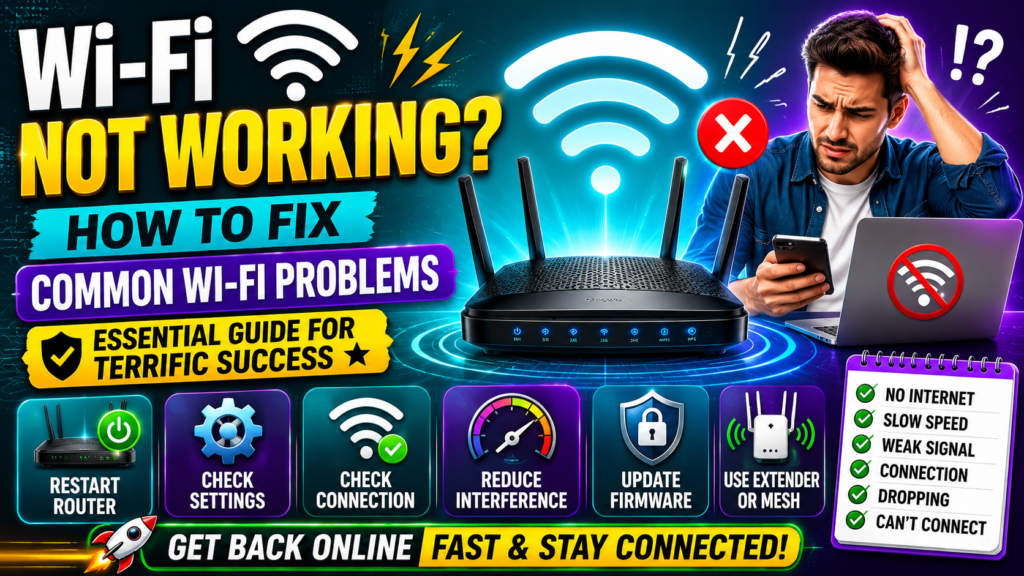
Few digital scenarios are more frustrating than a sudden internet disconnection when you are in the middle of a critical work assignment or streaming your favorite entertainment. In our hyper-connected society, learning how to fix wi-fi problems independently is a vital skill that saves you time, money, and stress. When your wireless connection drops, you do not need to wait on hold for hours with technical support teams. Most local networking dropouts stem from minor software bugs or temporary hardware conflicts that you can resolve within minutes using systemic diagnostic steps.
Many device owners automatically assume that a blank web page means their internet provider has failed completely. While a widespread ISP outage does happen occasionally, the root bottleneck is often located right inside your own home hardware configuration. Taking the time to understand how to fix wi-fi problems allows you to take full control of your local area network, isolate client software bugs, and keep your smart home running smoothly. This manual provides a complete troubleshooting blueprint to systematically diagnose network drops, fix slow speeds, and eliminate connection errors like a professional.
The Initial Diagnostic Checklist
Before changing deep system configurations inside your computer operating system or routing hardware, you should verify a few basic parameters to narrow down the problem area.
Fast Verification Checks
- Check the Indicator Lights: Look at the front face of your physical modem and router to see if any lights are flashing red or amber.
- Test Multiple Client Devices: Check if your mobile smartphone and tablet are experiencing the exact same connection failure as your laptop.
- Verify Physical Cables: Ensure all physical network cords are pushed tightly into their respective ports on the back of your equipment.
- Toggle the Wireless Radio Button: Make sure your laptop hasn’t accidentally had its physical flight mode switched on.
Understanding the Physical layer of Signal Travel
To build a reliable approach to troubleshooting, it is highly beneficial to look at the underlying mechanics of how open-air data travels through your home space. Wireless transmitters convert data files into high-frequency radio waves that spread out across your rooms.
When these delicate radio signals run into massive physical obstacles like brick chimneys, heavy metallic mirrors, or concrete walls, they experience a massive drop in transmission volume. Learning how wi-fi works at this physical level helps you understand why your devices might suffer sudden signal drops or total disconnections when you move away from the central access hub. If your router sits in a poor location, simple physical changes will resolve your connectivity issues instantly.
Step 1: The Master Power Cycle Sequence (1997 – 2026)
The fundamental engineering process for resetting home networking hardware has remained a reliable diagnostic milestone from 1997 through 2026. While router processing chips have become vastly more powerful, a standard hardware reboot remains the single most effective tool for clearing memory errors.
+-------------------------------------------------------+
|          CORRECT POWER CYCLE HARDWARE SEQUENCE        |
+-------------------------------------------------------+
| Step 1: Unplug both Modem and Router from the wall.   |
| Step 2: Wait exactly 60 seconds to clear system cache.|
| Step 3: Plug in the Modem first; wait for solid lights.|
| Step 4: Plug in the Router; allow 2 minutes to boot.  |
+-------------------------------------------------------+
When you encounter unexpected signal drops or a Wi-Fi connected but no internet status error, executing a proper power cycle should always be your very first step. Unplug the power bricks for both your broadband modem and wireless router directly from the wall socket. Leave the units dark for at least sixty seconds to allow the internal electrical capacitors to drain completely, wiping out any temporary firmware corruption or jammed data queues. Plug your modem back into the electrical wall outlet first, waiting patiently until its connection status lights turn completely solid. Once the modem is online, power up your router and give it two full minutes to rebuild your local area network paths.
Step 2: Resolving a Wi-Fi Connected But No Internet Status
One of the most confusing situations occurs when your laptop dashboard claims you have a full wireless connection, but opening a browser window brings up a blank offline error page.
This paradox usually means your laptop is communicating perfectly with your local home router, but your router is completely failing to talk to the wider global internet. To isolate this issue, connect an access device directly to the back of your provider box using a physical network cable. If you discover that your hardwired link works flawlessly while your airwaves fail, the problem is trapped inside your local broadcast settings. Reviewing a direct breakdown on wi-fi vs ethernet compared shows why physical lines remain highly useful for diagnosing internal network bugs versus total broadband line drops.
Step 3: Fixing Slow Local Speeds and Channel Crowding
When your network functions but web pages load at a painful crawl, you must look into your immediate surroundings for hidden interference sources.
If you are constantly asking yourself why is my Wi-Fi so slow, the answer is often found in local channel crowding. Traditional consumer routers broadcast data on the 2.4 GHz frequency spectrum, which contains only three clean, non-overlapping channels. If every household in your neighborhood has their equipment set to the exact same channel path, your data packets will continuously collide in mid-air. To fix this airwave chaos, reading up on how to boost wi-fi signal layers can show you how to log into your admin screen to lock your wireless radio to a clean, quiet channel.
Step 4: Updating Outdated Network Card Software
If only one single computer in your house is suffering from frequent network drops while every other smartphone works perfectly, your router is not the source of your problem.
Python
def diagnostic_network_check(adapter_enabled, driver_version):
    # Simulating a system control panel check on the local wireless network adapter
    latest_driver = 2026

    if not adapter_enabled:
        return "ERROR: Network adapter is disabled in control panel. Toggle it on."
    elif driver_version < latest_driver:
        return "WARNING: Outdated network adapter software detected. Execute a driver update."
    else:
        return "SUCCESS: Client network adapter hardware is functioning at peak efficiency."

# Testing a simulated client computer status profile
print(diagnostic_network_check(adapter_enabled=True, driver_version=2022))
An outdated or corrupted device driver will cause your operating system to lose track of its physical network adapter card, triggering sudden system disconnections. Open the Device Manager panel on your operating system, locate your specific wireless network adapter chip, and select the automated update tool. If your system cannot find a new file, visit the official manufacturer support page on a connected computer, download the latest software installer onto a temporary USB storage drive, and run the driver update manually to restore stable system communication.
Step 5: Clearing Local Network Configuration Stalls
Over extended periods of continuous operation, computer operating systems can accumulate conflicting network parameters, causing local connection stalls.
If your computer throws a continuous loop of error screens, running a fast terminal flushing sequence can clear out old data assignments instantly. Open your system command terminal with administrative access privileges and run the following configuration clearing steps:
DOS
:: Automated command line utility to fix slow Wi-Fi or local IP conflicts
ipconfig /release
ipconfig /renew
ipconfig /flushdns
netsh int ip reset
The first command drops your current local address assignment, while the second command forces your router to hand your device a completely fresh, conflict-free identity via DHCP. The third command wipes out your local address cache memory, resolving issues where your computer tries to look up website destinations using outdated or broken path records.
Step 6: Overcoming Authentication and Security Errors
Another highly frustrating hurdle is encountering a continuous wireless network authentication error message when you input your network password.
This loop often highlights a mismatch between the security encryption standards expected by your router and the capabilities built into your client device. If your router has been set to an advanced modern protection level, older smartphones or budget tablets will fail to clear the security handshake. To resolve this compatibility wall, looking over a manual on wi-fi security explained provides clear steps on how to configure a hybrid mixed-mode layout, allowing modern computers to stay locked behind elite protection while giving older gear a safe entry path.
Step 7: Fixing DNS Server Not Responding Conditions
If your operating system diagnostics tool explicitly displays a DNS server not responding Wi-Fi notification, your device has lost the ability to translate web domain names into raw numerical routing numbers.
By default, your home network uses the automated DNS pathways provided by your local internet service provider. These servers can sometimes crawl to a complete stop or freeze up entirely under heavy traffic loads. To bypass this provider bottleneck, open your network card properties dashboard and manually switch your primary and secondary DNS destinations over to a reliable global public provider, such as Google Public DNS (8.8.8.8 and 8.8.4.4) or Cloudflare (1.1.1.1). This simple adjustment restores immediate internet access and often speeds up your daily page load times.
Step 8: Resolving Hardware IP Conflict Bugs
In homes packed with smart accessories, light switches, and mobile devices, two separate pieces of hardware can occasionally end up fighting over the exact same local network address.
This IP conflict stalls data transmission for both affected devices immediately. To solve this routing puzzle, you can log directly into your router’s internal administration dashboard via a standard web browser. If you need assistance accessing this backend, reviewing an article on how to set up a wi-fi router will guide you through using your default gateway address. Once inside, navigate to the DHCP server settings menu and expand your local pool size to ensure your hardware has plenty of distinct numerical identities to hand out to incoming client requests.
Step 9: The Last Resort Factory Reset Protocol
If you have executed every troubleshooting step in this guide and your equipment still refuses to broadcast an internet feed, your router firmware may have suffered deep internal corruption.
+-------------------------------------------------------------+
|              ROUTER RECOVERY ACTION THRESHOLDS              |
+----------------------+--------------------------------------+
| BUG SEVERITY         | RECOMMENDED ACTION STEPS             |
+----------------------+--------------------------------------+
| Minor Lag / Glitches | Quick Power Cycle (Unplug 60 Sec)    |
| IP / DNS Stalls      | Terminal Flush (ipconfig /flushdns)  |
| Deep Firmware Crash  | Hard Factory Reset (Hold Reset Pin)  |
+----------------------+--------------------------------------+
A hard factory reset wipes out every single custom setting, password, and channel configuration, turning the software back to the exact state it was in when it first left the assembly plant. Locate the tiny, recessed reset button on the back casing of your hardware. Straighten out a metal paperclip, push it into the opening, and hold the physical button down firmly for ten full seconds. Watch the front LED display panel flash wildly as the system boots back down to its original defaults. Once the recovery loop finishes, you can safely log back into the original factory network name to configure a clean, stable profile.
Knowing When Your Hardware Has Failed
Sometimes no amount of software modification can save an aging networking asset. If your router requires a power cycle multiple times every single day just to stay running, its internal memory chips or power capacitors are likely failing due to long-term heat exposure.
Modern internet demands require robust processing architecture to sort heavy background data packages safely. If your hardware was manufactured many years ago, it will continuously bottleneck your high-speed fiber connection lines. Upgrading your home network hub to a modern multi-band system removes these equipment limitations entirely, giving you a fresh, stable platform equipped with modern self-healing code features designed to manage multi-device households smoothly.
Frequently Asked Questions (FAQs)
Why does my Wi-Fi show a connection but fail to load any web pages?
This status indicates that your computer is linked successfully to your local home router, but your router is completely cut off from the global internet. Try rebooting your broadband modem first to force it to re-establish a fresh connection line with your main internet provider.
How do I fix a persistent network authentication error on my phone?
Start by choosing the “Forget Network” option within your phone’s wireless settings to delete cached credentials. Reboot your phone, select the network name again, and carefully enter your security passphrase. If the error remains, verify that your router security protocol matches what your phone can handle.
Can a nearby household appliance completely crash my wireless connection?
Yes, older kitchen microwave ovens, cordless phones, and baby monitors that operate on the traditional 2.4 GHz spectrum can leak open-air noise when running. Shifting your high-priority workspace computers over to the clearer 5 GHz frequency band completely avoids this appliance interference.
Conclusion: Maintaining a Dependable Home Network Baseline
Developing a solid understanding of how to fix wi-fi problems turns a highly stressful connectivity failure into a manageable, minor technical task. By systematically tracing your network issues from simple physical power cycles up to deep DNS and driver configurations, you can confidently troubleshoot router problems without wasting hours waiting for external field technicians. Keep your hardware running cool in an elevated position, update your device drivers regularly, and enjoy a fast, uncompromised web link across your entire living space. If you are interested in exploring the boundaries of coverage zones further, a detailed read on wi-fi range explained will help you map out your home layout to completely prevent signal drops before they can disrupt your day.