You have made an excellent decision. Learning Python will open doors to data science, web development, automation, and artificial intelligence. But before you write your first line of code, you need to get Python running on your computer. This python installation guide will walk you through every single step for Windows, Mac, and Linux operating systems. I will not assume any technical background. I will explain every term and every click. By the end of this guide, you will have a fully working Python environment with package management, virtual environments, and a professional code editor. Whether you are a complete beginner or someone who has struggled with installation before, this python installation guide will solve your problems. Let me start with a fascinating piece of history of programming languages trivia. Python was created by Guido van Rossum in 1989 and named after the British comedy group Monty Python. That fun fact makes installation feel less intimidating. Now let us get practical.
What You Need Before Starting (2026 Update)
Before diving into the python installation guide, let us check what you already have. Every modern computer can run Python. You need approximately 200 MB of free disk space and an internet connection to download the installer. That is it. No powerful graphics card needed. No expensive hardware. Python runs on almost anything including old laptops and even Raspberry Pi computers. The cross platform compatibility of Python is one of its greatest strengths. The same code written on Windows runs unchanged on Mac or Linux. This guide covers all three operating systems because I want you to succeed no matter what computer you use. For python 3.14 installation, the steps are identical to earlier versions since the installer process has remained consistent for years. Currently Python 3.12 and 3.13 are stable, but the concepts never change. Let me also clarify a common confusion. Python comes in two major versions. Python 2 is dead and should never be used. Python 3 is the present and future. This guide always refers to Python 3.
Windows Installation Step by Step
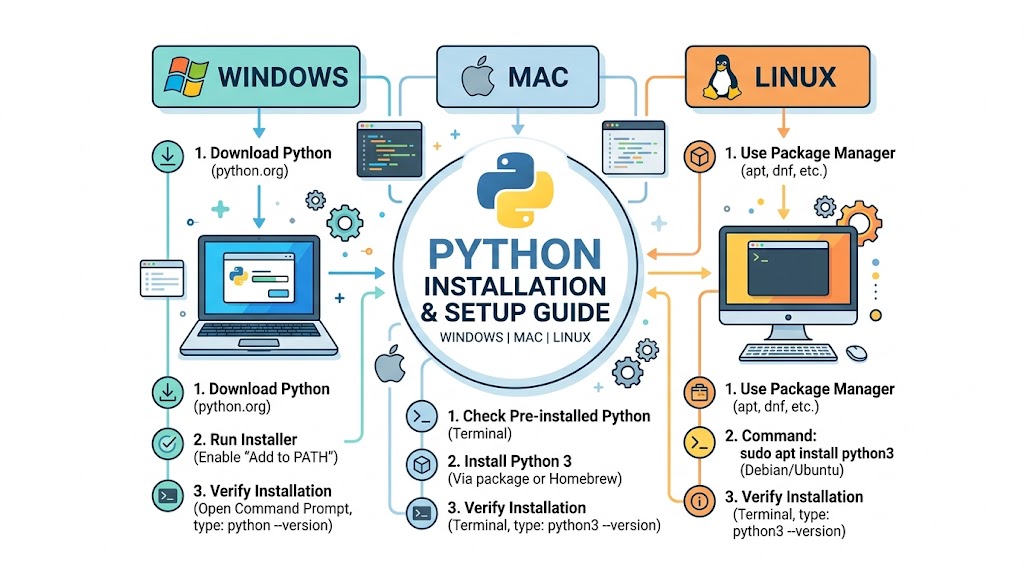
Let us begin with Windows since it is the most common operating system for beginners. Follow these exact steps for a successful python installation guide on Windows. First, open your web browser and go to python.org. Hover over the “Downloads” menu. The website automatically detects that you are using Windows and suggests the correct installer. Click the yellow button that says “Download Python 3.x.x” where x.x is the latest version number. The file name ends with .exe which stands for executable file. Once the download completes, open your Downloads folder and double click the installer. This is the most critical moment of the entire python installation guide. A window appears with several options. Look at the very bottom of the window. You will see a checkbox that says “Add Python to PATH.” CHECK THIS BOX. I am repeating this because it is the single most common mistake. If you forget to check this box, your computer will not recognize Python commands in the command line interface (CLI). After checking the box, click “Install Now.” The installer will copy files to your computer. This takes about one minute. When you see “Setup was successful,” click Close. Congratulations. Python is now installed.
Verifying Your Windows Installation
Installation means nothing if you cannot verify it works. Open the Windows Start menu and type cmd to find the Command Prompt application. Click to open it. You will see a black window with white text. Type this command exactly and press enter:
python --version
If everything worked correctly, you will see something like Python 3.12.5 displayed. If you see an error message saying 'python' is not recognized, something went wrong. The most likely cause is forgetting to add Python to PATH. Do not panic. You have two options. First, rerun the installer. Choose “Modify” and ensure the PATH option is checked. Second, uninstall Python completely and reinstall following the steps above carefully. Once python --version works, test the package manager. Type this command:
pip --version
You should see a version number for pip. The pip command is Python’s package manager. It installs external python libraries. If both commands work, your Windows setup is complete. For python for beginners, this verification step builds confidence. You are not guessing whether Python works. You have proven it works.
Mac Installation Using Homebrew (2026)
Mac users have two excellent options for this python installation guide. The easiest method for beginners is downloading the official installer from python.org exactly like Windows. However, the professional method uses homebrew python mac installation. Homebrew is a package manager for Mac that simplifies installing and updating software. Let me cover both methods. For the official installer, go to python.org/downloads. Click the macOS installer. The file ends with .pkg. Open it and follow the graphical installer. It is very straightforward. For the Homebrew method, first install Homebrew if you do not have it. Open the Terminal application (found in Applications > Utilities). Paste this command:
/bin/bash -c "$(curl -fsSL https://raw.githubusercontent.com/Homebrew/install/HEAD/install.sh)"
Wait for Homebrew to install. Then type:
brew install python
Homebrew downloads and installs Python automatically. It also adds Python to your system path correctly. To verify, type:
python3 --version
Notice the python3 command instead of just python. Macs ship with an old Python 2 version for system use. Using python3 ensures you get your new installation. Also test pip with pip3 --version. Many python learning resources recommend the Homebrew method because updating Python later is as simple as brew upgrade python. The command line interface (CLI) becomes your friend rather than something scary.
Linux Installation Using Terminal Commands
Linux users have the simplest experience in this python installation guide. Most Linux distributions come with Python preinstalled. However, you may have an older version. Let me show you how to install or update Python on Ubuntu, Debian, Fedora, and other distributions. Open your terminal commands application. For Ubuntu or Debian based systems, first update your package list:
sudo apt update
Then install Python:
sudo apt install python3 python3 pip
The sudo apt install command fetches Python from the official repositories. For Fedora or Red Hat based systems, use:
sudo dnf install python3
For Arch based systems, use:
sudo pacman -S python
After installation completes, verify with:
python3 --version and pip3 --version
Linux users also need to know about the system path. Unlike Windows, Linux handles paths automatically. The real advantage of Linux for Python development is that virtual environments and system level tools work seamlessly. Many professional data scientists prefer Linux because dependency management is more straightforward. If you are using this python installation guide on a Chromebook with Linux enabled, the Ubuntu commands work perfectly.
Setting Up Virtual Environments
Now that Python runs on your computer, let me introduce one of the most important concepts for serious development. Virtual environments create isolated spaces for different projects. Why does this matter? Imagine Project A needs version 1.0 of a library but Project B needs version 2.0. Without virtual environments, you cannot have both. With virtual environments, each project has its own independent dependency management. Creating a virtual environment is simple. Open your terminal or command prompt. Navigate to your project folder using cd. Then type:
python m venv myenv
This creates a folder called myenv containing a complete Python installation. To activate the environment on Windows, type:
myenv\Scripts\activate
On Mac or Linux, type:
source myenv/bin/activate
You will see (myenv) appear at the beginning of your command line. Everything you install with pip now goes into this isolated environment. To deactivate, just type deactivate. This python installation guide strongly recommends using virtual environments for every project you build. It is a best practice that saves hours of troubleshooting. Many python libraries conflicts are entirely avoided by using virtual environments from day one.
Choosing an IDE VS Code vs PyCharm
Python runs perfectly from the terminal. But most developers use an Integrated Development Environment (IDE) for a better experience. The integrated development environment (IDE) provides syntax highlighting, error checking, code completion, and debugging tools. The two most popular choices are VS Code and PyCharm. Let me help you choose. VS Code setup for python is completely free and lightweight. Download VS Code from code.visualstudio.com. After installing, open VS Code. Click the Extensions icon (four squares) on the left sidebar. Search for “Python” and install the official Microsoft Python extension. VS Code then automatically detects your Python installation. You can open a .py file and click the play button to run it. VS Code works well for beginners and professionals alike. PyCharm installation comes in two versions. PyCharm Community Edition is free. PyCharm Professional requires payment but includes advanced features like web development tools. PyCharm is heavier but offers superior refactoring and database tools. For this python installation guide, I recommend starting with VS Code. It is simpler, faster, and completely sufficient for learning. If you later work on large codebases, try PyCharm.
Installing Essential Python Libraries
Python’s superpower is its ecosystem of python libraries. After completing this python installation guide, you should install several essential libraries that work across all operating systems. Use the pip command for each installation. First, install NumPy for numerical computing:
pip install numpy
Second, install Pandas for data analysis:
pip install pandas
Third, install Matplotlib for creating graphs and charts:
pip install matplotlib
Fourth, install Jupyter for interactive notebooks:
pip install jupyter
Fifth, install Requests for making HTTP requests:
pip install requests
These five libraries cover 80% of what beginners need. For python for data science, these are non negotiable tools. For python web development, you will later add Django or Flask. For python automation, requests and pandas are extremely useful. To verify a library installed correctly, open Python shell by typing python (or python3 on Mac/Linux) and then type import numpy. If no error appears, the library is installed. Type exit() to leave the Python shell.
Setting PATH Environment Variable Correctly
The most common problem users face after following any python installation guide is PATH issues. Let me explain what PATH actually means. The PATH environment variable is a list of folders where your computer looks for executable programs. When you type python, your computer searches each folder in PATH until it finds python.exe. If the Python folder is not in PATH, the command fails. On Windows, if you forgot to check “Add Python to PATH” during installation, here is how to fix it. Open System Properties. Search for “Environment Variables” in Windows search. Under System Variables, find the variable called Path. Click Edit. Click New. Add these two paths (adjust for your Python version):
C:\Users\YourName\AppData\Local\Programs\Python\Python312\
C:\Users\YourName\AppData\Local\Programs\Python\Python312\Scripts\
Click OK on all windows. Restart your command prompt. Now python and pip should work. On Mac and Linux, PATH problems are rare. But if needed, you can add Python to PATH by editing your shell configuration file (.bashrc, .zshrc, or .bash_profile) and adding:
export PATH="/usr/local/bin/python3:$PATH"
Then run source ~/.bashrc to reload. The system path configuration is worth understanding because many advanced tools require manual PATH adjustments.
Using Python Shell and Interactive Mode
Before writing full programs, you can experiment in the Python shell. The python shell is an interactive environment where code runs immediately after you press enter. To start the shell, type python (or python3) in your terminal. You will see >>> prompts. Try typing:
>>> print("Hello from the shell")
>>> 2 + 2
>>> name = "Alice"
>>> name.upper()
The shell executes each line instantly. This is perfect for testing small ideas, checking library functions, or learning python syntax basics. To exit the shell, type exit() or press Ctrl+Z (Windows) or Ctrl+D (Mac/Linux). Many python for absolute beginners spend their first week entirely in the shell before writing script files. The shell provides immediate feedback. There is no compile step, no waiting, no confusion. For setting up virtual environments, activate your environment first, then launch the shell to verify libraries are available.
Troubleshooting Common Installation Problems
Even with a perfect python installation guide, problems can occur. Let me solve the five most common issues. Problem 1: 'python' is not recognized on Windows. Solution: You forgot to add Python to PATH. Either reinstall and check the PATH box, or manually add PATH as described above. Problem 2: pip command not found. Solution: On newer Python versions, pip installs automatically. If missing, run python m ensurepip. Alternatively, reinstall Python. Problem 3: python3 command not found on Mac. Solution: Install Python using Homebrew as shown earlier. Problem 4: Permission denied errors on Linux. Solution: Use sudo before installation commands, or install Python using your distribution’s package manager. Problem 5: VS Code does not detect Python. Solution: Open VS Code command palette (Ctrl+Shift+P), type “Python Select Interpreter,” and manually choose your Python executable. Do not let these problems discourage you. Every programmer has faced installation issues. The solutions are well documented. Search the exact error message and you will find answers.
Anaconda Distribution An Alternative Approach
Some beginners prefer an all in one solution called anaconda distribution. Anaconda includes Python, over 250 preinstalled libraries, a package manager called conda, and the Jupyter notebook environment. The download size is about 500 MB. Anaconda is particularly popular among data scientists because it avoids separate installations of numpy, pandas, and scikit learn. For this python installation guide, Anaconda is a valid alternative to the standard Python installer. Download Anaconda from anaconda.com. Run the installer. Add Anaconda to your PATH when prompted. After installation, you get the Anaconda Navigator a graphical interface for launching Jupyter, VS Code, and other tools. The downside of Anaconda is its large size and slower startup. The upside is that everything works out of the box. If you plan to focus heavily on python for data science rather than general programming, Anaconda is an excellent choice. Many universities recommend Anaconda to students because it eliminates environment headaches.
Running Your First Python Script
Now that you have completed this python installation guide, let us run a real script. Open a text editor (not Word). Create a new file called first.py. Type these lines:
name = input("What is your name? ")
print(f"Hello {name}! Welcome to Python.")
print("Your Python installation is working perfectly.")
Save the file. Open your terminal or command prompt. Navigate to the folder containing first.py using the cd command. Type python first.py (or python3 first.py). The script asks for your name. Type anything and press enter. You will see a personalized greeting. Congratulations. You have moved from installation to execution. This script uses input, variables, f strings, and print statements. All of this works because your python installation guide succeeded. The executable file first.py runs exactly the same on Windows, Mac, and Linux. That is the beauty of Python’s cross platform compatibility.
Frequently Asked Questions (FAQs)
Q1: Do I need admin rights to follow this python installation guide?
On Windows and Mac, admin rights help but you can install Python for your user only without admin.
Q2: What is the difference between Python and Anaconda?
Python is the core language. Anaconda is a distribution that includes Python plus 250 preinstalled libraries.
Q3: How do I update Python to a newer version?
Download the new installer from python.org and run it. It replaces the old version automatically.
Q4: Can I have multiple Python versions installed at once?
Yes. Use virtual environments or specify python3.11 vs python3.12 commands.
Q5: Why does my terminal say ‘python’ not found after I installed it?
You forgot to add Python to PATH. Reinstall and check the PATH box carefully.
Conclusion
You have successfully completed the most comprehensive python installation guide available for 2026. Python now runs on your Windows, Mac, or Linux computer. You understand PATH, virtual environments, pip, and IDEs. You know how to troubleshoot common problems. You have choices between standard Python and Anaconda. You have verified everything works by running your first script. The journey from here is exciting. Every line of code you write will build on this solid foundation. The history of programming languages shows that installation is the first barrier. You have conquered it. Now go build something amazing. Open VS Code. Write print("Hello World"). Then keep going. The Python community welcomes you.