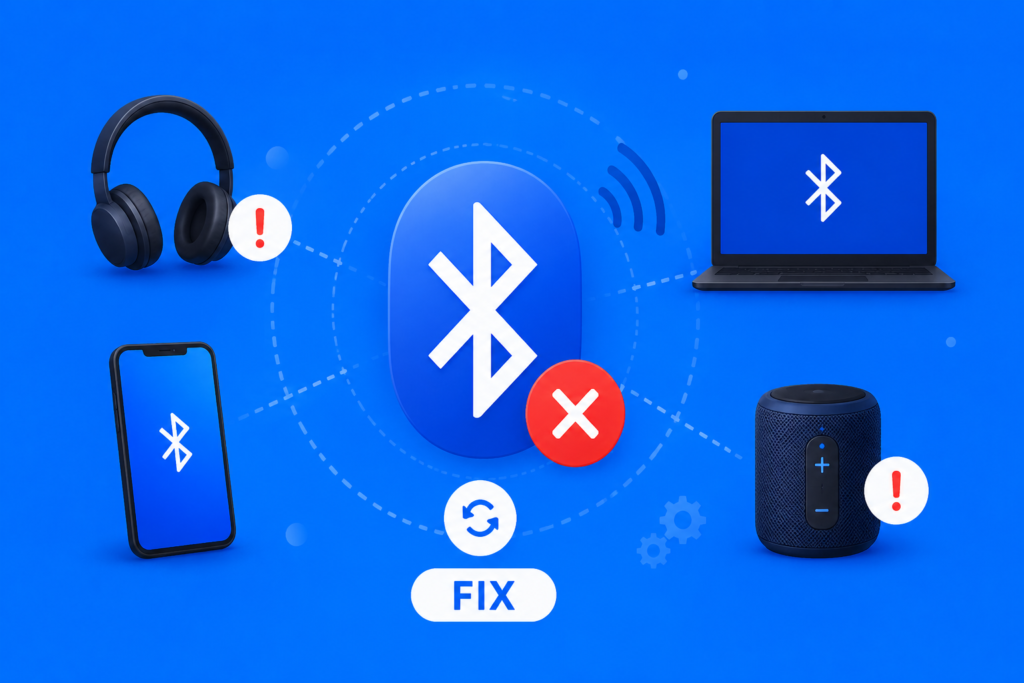
Learning how to fix bluetooth problems is extremely important because Bluetooth technology powers billions of wireless devices worldwide. Smartphones, headphones, speakers, smartwatches, laptops, gaming accessories, smart TVs, and car systems all depend on stable Bluetooth communication.
Unfortunately, Bluetooth problems are very common. Users often experience:
- Bluetooth connection keeps dropping
- Device not found errors
- Pairing failure
- Bluetooth lag
- Weak signal issues
- Audio interruptions
- Random disconnects
The good news is that most Bluetooth problems are easy to solve with simple troubleshooting steps.
Modern Bluetooth systems are much more reliable than older versions, but software glitches, hardware interference, outdated drivers, and wireless signal issues can still create frustrating connectivity problems.
This complete troubleshooting guide explains how to fix bluetooth problems on Android, iPhone, Windows, Mac, headphones, smart devices, gaming systems, and wireless accessories.
Why Bluetooth Problems Happen (1999 – Today)
Before learning how to fix bluetooth problems, it helps to understand why Bluetooth issues happen in the first place.
Bluetooth technology uses wireless radio communication in the 2.4 GHz frequency range.
Because Bluetooth relies on wireless communication, several factors may interrupt connections:
- Software glitches
- Weak signal strength
- Hardware interference
- Pairing errors
- Driver problems
- Outdated firmware
- Battery issues
Early Bluetooth systems were far less stable than modern versions.
If you want historical background, exploring bluetooth history explains how Bluetooth evolved into today’s advanced wireless standard.
Modern Bluetooth systems are much stronger, but troubleshooting is still sometimes necessary.
Restarting Devices Fixes Many Bluetooth Problems
One of the easiest ways to fix bluetooth problems is simply rebooting your devices.
Restarting helps clear:
- Temporary software glitches
- Frozen Bluetooth services
- Wireless synchronization issues
- Minor connection bugs
Basic Restart Method
- Turn Bluetooth off
- Restart both devices
- Turn Bluetooth back on
- Attempt pairing again
This simple troubleshooting step solves many common errors immediately.
Never underestimate how effective restarting can be.
Device Not Found Problems
One of the most common issues involving fix bluetooth problems is the “device not found” error.
This happens when devices cannot detect each other wirelessly.
Causes of Device Not Found Errors
- Bluetooth disabled
- Device not in pairing mode
- Devices too far apart
- Battery problems
- Software glitches
Solutions
- Enable Bluetooth on both devices
- Activate discoverable mode
- Move devices closer together
- Restart both devices
- Remove older paired devices
Keeping devices nearby during pairing improves connection success rates significantly.
Pairing Failure Troubleshooting
Pairing failure is another extremely common Bluetooth issue.
Devices sometimes refuse to connect even when they appear on the Bluetooth list.
How to Fix Pairing Failure
- Remove old paired devices
- Restart Bluetooth services
- Reset Bluetooth settings
- Recharge device batteries
- Retry pairing process
If you need setup help, learning how to pair bluetooth devices correctly reduces many pairing issues.
Modern pairing systems are usually very reliable when configured properly.
Bluetooth Connection Keeps Dropping
A Bluetooth connection keeps dropping issue can be extremely frustrating.
This problem often happens because of:
- Weak wireless signals
- Battery saving systems
- Hardware interference
- Distance problems
- Outdated firmware
How to Fix Random Disconnects
- Keep devices closer together
- Disable battery optimization temporarily
- Update firmware updates
- Avoid crowded wireless environments
- Restart devices
Modern bluetooth versions improved wireless stability significantly, especially Bluetooth 5.x systems.
Newer devices usually provide stronger connection reliability.
Bluetooth Range Issues
Weak wireless coverage often causes Bluetooth failures.
If you want deeper technical details, learning about bluetooth range explains how distance affects wireless performance.
Common Bluetooth Range Problems
- Signal weakening through walls
- Long distance communication
- Electronic interference
- Obstructed wireless paths
How to Improve Bluetooth Range
- Reduce physical barriers
- Stay closer to devices
- Avoid crowded wireless areas
- Use newer Bluetooth devices
Modern Bluetooth 5.x systems provide much stronger range than older generations.
Hardware Interference Problems
Hardware interference is a major cause of Bluetooth issues.
Many devices use the same 2.4 GHz wireless frequency band.
Interference sources include:
- WiFi routers
- Microwaves
- Wireless keyboards
- Smart home systems
- Nearby Bluetooth devices
How to Reduce Interference
- Move away from WiFi routers
- Reduce nearby wireless traffic
- Restart wireless devices
- Use updated Bluetooth hardware
Reducing interference often improves wireless stability dramatically.
Bluetooth Lag and Audio Delay
Bluetooth lag commonly affects:
- Wireless headphones
- Gaming systems
- Video streaming
- Voice calls
Audio delay happens when wireless communication becomes unsynchronized.
Causes of Bluetooth Lag
- Weak signal strength
- Old Bluetooth hardware
- Poor codec support
- Heavy wireless interference
Modern bluetooth audio codecs improved synchronization and reduced audio lag significantly.
Premium devices usually perform much better.
Clearing Bluetooth Cache on Android
Android devices sometimes develop corrupted Bluetooth cache files.
This may cause:
- Pairing failures
- Device not found problems
- Random disconnects
How to Clear Bluetooth Cache
- Open Settings
- Select Apps
- Find Bluetooth
- Open Storage
- Clear Cache
This often resolves stubborn Bluetooth glitches on Android systems.
Fix Bluetooth on Android
Android troubleshooting often involves multiple steps.
Android Bluetooth Repair Guide
- Restart device
- Clear Bluetooth cache
- Reset network settings
- Update Android software
- Remove old paired devices
- Disable battery optimization
Android Bluetooth performance improved greatly in recent years, but software bugs still occasionally appear.
Fix Bluetooth on iPhone
iPhone Bluetooth systems are usually stable, but issues can still occur.
iPhone Bluetooth Troubleshooting
- Restart iPhone
- Toggle Bluetooth off and on
- Forget paired devices
- Update iOS
- Reset network settings
Apple devices usually reconnect smoothly after resets.
Software updates often solve Bluetooth bugs quickly.
Driver Updates on Windows
Windows Bluetooth issues are often related to outdated drivers.
Signs of Driver Problems
- Bluetooth not appearing
- Devices refusing to connect
- Audio glitches
- Random disconnects
How to Update Bluetooth Drivers
- Open Device Manager
- Locate Bluetooth adapter
- Select Update Driver
- Restart computer
Driver updates improve compatibility and wireless stability significantly.
Reset Bluetooth Settings
Reset Bluetooth settings is one of the most powerful troubleshooting steps.
This clears corrupted connection information and wireless configuration problems.
What Resetting Bluetooth Does
- Removes paired devices
- Clears saved wireless data
- Restarts Bluetooth communication systems
Resetting settings often fixes stubborn software glitches.
However, devices must be paired again afterward.
Bluetooth Security Problems
Some Bluetooth problems relate to security settings.
Modern bluetooth security systems use:
- Encryption
- Authentication
- Secure pairing protocols
Incorrect security permissions may sometimes block communication.
Updating firmware and operating systems helps maintain safe and stable wireless communication.
Security improvements in newer Bluetooth versions reduced many earlier wireless vulnerabilities.
Bluetooth Classic vs BLE Issues
The comparison between bluetooth classic vs ble also affects troubleshooting.
Bluetooth Classic
- Audio streaming
- Continuous communication
- Higher power usage
BLE
- Low power communication
- Smart devices
- IoT systems
BLE devices sometimes behave differently during pairing and reconnection processes.
Understanding the communication type helps solve wireless issues more effectively.
Bluetooth Headphone Problems
Wireless headphone problems are extremely common.
Typical issues include:
- One earbud not working
- Audio lag
- Connection drops
- Poor sound quality
If you use premium audio products, exploring best bluetooth headphones may help identify devices with stronger wireless reliability.
Cheap or outdated headphones often produce more Bluetooth issues.
Bluetooth vs WiFi Interference
Many users do not realize how much bluetooth vs wifi vs nfc communication systems can interfere with one another.
Bluetooth and WiFi often operate on similar wireless frequencies.
This may create:
- Signal congestion
- Wireless instability
- Reduced connection quality
Modern Bluetooth systems use smarter channel management to reduce interference.
Newer devices perform far better in crowded wireless environments.
Software Updates Matter
Firmware updates and operating system updates solve many Bluetooth bugs.
Manufacturers frequently release updates that improve:
- Connection reliability
- Pairing performance
- Wireless efficiency
- Security systems
Always keep:
- Smartphones updated
- Bluetooth accessories updated
- Operating systems current
Outdated software remains one of the biggest causes of Bluetooth instability.
Factory Reset as a Last Resort
If nothing else works, factory resetting the device may help.
Factory resets remove:
- Corrupted settings
- Hidden software conflicts
- Persistent Bluetooth glitches
However, factory resets should only be used as a last resort because they erase device settings and data.
Always back up important information first.
The Future of Bluetooth Stability
The future of bluetooth looks increasingly reliable.
Future Bluetooth systems will likely improve:
- AI-powered troubleshooting
- Automatic signal optimization
- Smarter interference management
- Faster reconnection systems
- Better wireless synchronization
The rapid growth of smart ecosystems also connects closely with the future of software engineering, where intelligent wireless systems and automated diagnostics continue evolving rapidly.
Bluetooth troubleshooting will likely become much easier in future generations.
Why Modern Bluetooth Is Better Than Older Versions
Modern Bluetooth systems are far more stable than earlier generations.
Bluetooth 5.x improved:
- Wireless range
- Connection reliability
- Energy efficiency
- Audio synchronization
- Security systems
Most Bluetooth problems today come from software conflicts or outdated devices rather than Bluetooth technology itself.
Wireless communication has improved dramatically over the past decade.
Frequently Asked Questions (FAQs)
Why is my Bluetooth not connecting?
Bluetooth may fail because of pairing errors, low battery, interference, outdated drivers, or software glitches.
How do I reset Bluetooth settings?
Most devices allow Bluetooth reset through network or connection settings menus.
Why does my Bluetooth keep disconnecting?
Weak signal strength, interference, outdated firmware, or battery optimization systems often cause disconnects.
Can WiFi interfere with Bluetooth?
Yes. WiFi routers and Bluetooth devices both use the 2.4 GHz wireless band, which may create interference.
How do I fix Bluetooth lag?
Move devices closer together, reduce interference, update software, and use better Bluetooth codecs.
Should I update Bluetooth drivers?
Yes. Driver updates often improve wireless stability, compatibility, and performance.
Conclusion
Learning how to fix bluetooth problems is essential because Bluetooth technology powers modern wireless communication across billions of devices worldwide.
Most Bluetooth issues involving pairing failure, device not found errors, Bluetooth lag, hardware interference, connection drops, and signal problems can be solved through simple troubleshooting methods such as restarting devices, updating firmware, resetting Bluetooth settings, and reducing wireless interference.
Modern Bluetooth systems are far more reliable than earlier generations, especially with Bluetooth 5.x improvements involving wireless stability, connection reliability, and smarter communication management.
As Bluetooth technology continues evolving, wireless communication will become even faster, more stable, and easier to troubleshoot in the connected digital future.